
Collect your configuration
Collect your Intune configuration from Microsoft Graph with the desktop app, read the overview and browse every configuration family.
Collecting reads your Intune configuration from Microsoft Graph onto your computer. Everything else in the app works on this collection: browsing, Search settings, exports and compliance evidence. A typical tenant takes about two minutes.
The collection only reads. Nothing in your tenant is changed.
Run your first collection
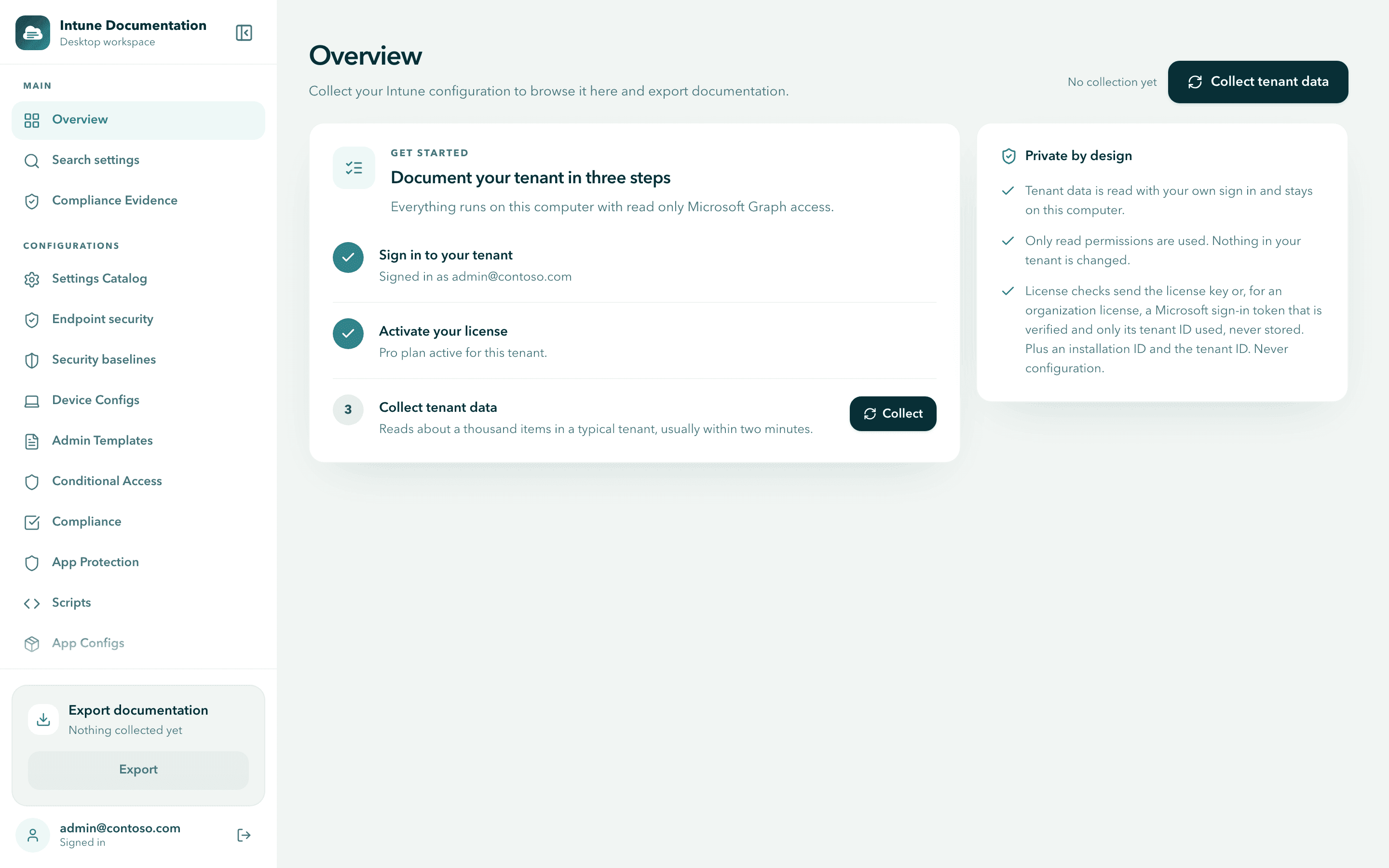
Before the first collection, the Overview shows three steps: sign in, activate your license and collect. The first two are ticked once you finished the setup.
Start the collection
Select Collect tenant data at the top right, or Collect next to the third step.
If the button is not available, the reason is shown next to it, for example "Sign in to your tenant to collect data." or "Add a license key to collect tenant data."
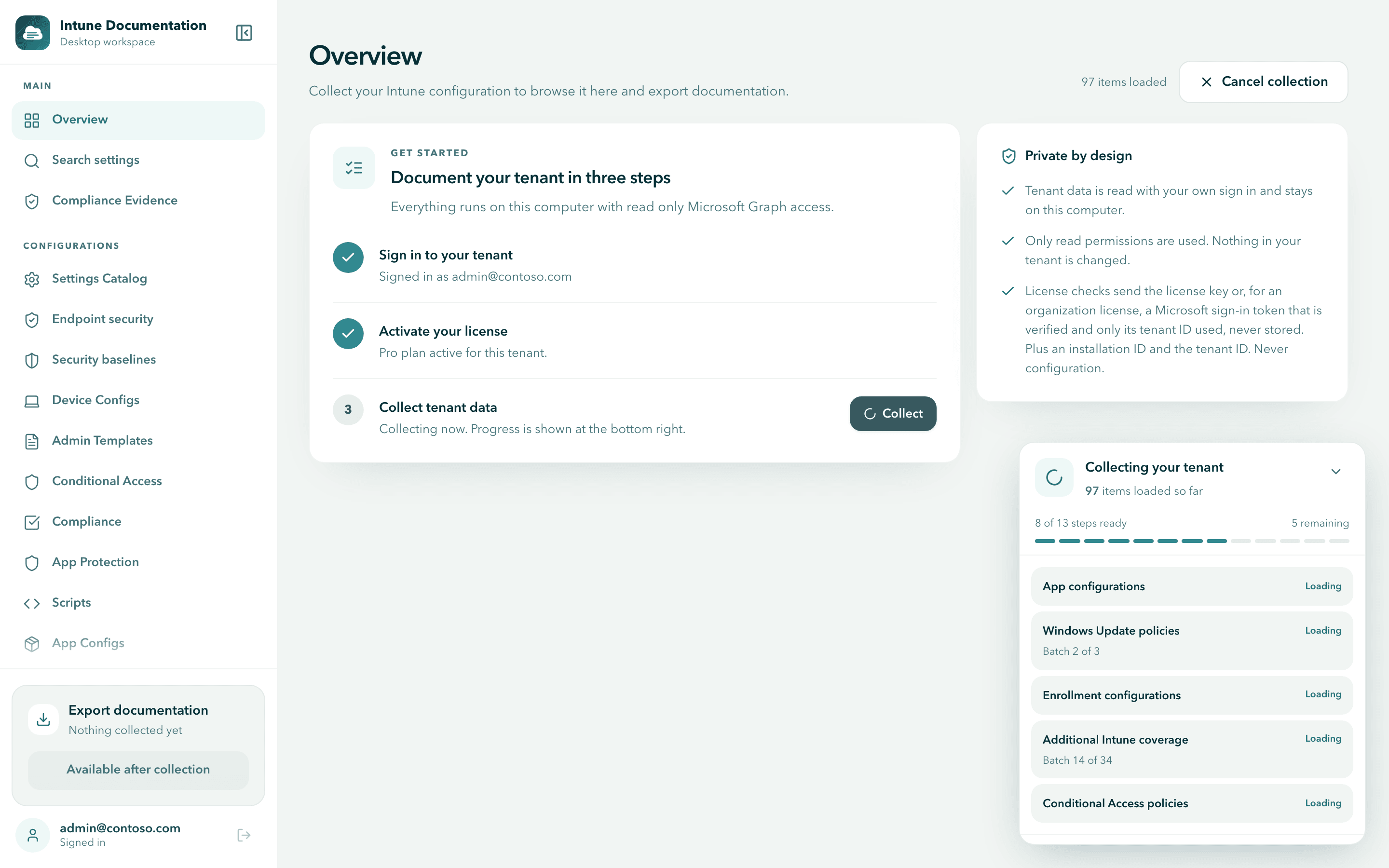
Follow the progress
A progress card opens at the bottom right. It shows how many items are loaded so far, how many steps are ready and which categories are still loading. You can minimize the card and keep using the app.
Review the result
When the collection finishes, the card reads Your workspace is up to date and the Overview fills with your numbers. If some data could not be loaded, it reads Collected with warnings instead. Select Review warnings to see them.
To stop a running collection, select Cancel collection. Start it again whenever you are ready.
What is collected
The app reads your Intune configuration and Conditional Access policies with the nine read-only permissions of your app registration. That covers:
- Settings Catalog policies, including endpoint security policies and security baselines
- Device configuration profiles and administrative templates
- Compliance policies and Conditional Access policies
- App protection and app configuration policies, and your apps with their assignments
- PowerShell and shell scripts, and remediations
- Windows Update policies and update profiles
- Enrollment configurations, Autopilot and provisioning
- Assignment filters, roles, role assignments and scope tags
- Tenant and service settings, connectors and specialist policies
For each item, the app reads its settings, platform, last modified date and assignments, with group names resolved. What appears depends on what your tenant uses and on what your account can read.
The collection is held in memory on your computer and never leaves it. It stays available until you sign out, change the app registration or close the app. After a restart, sign in and collect again.
The Overview explained
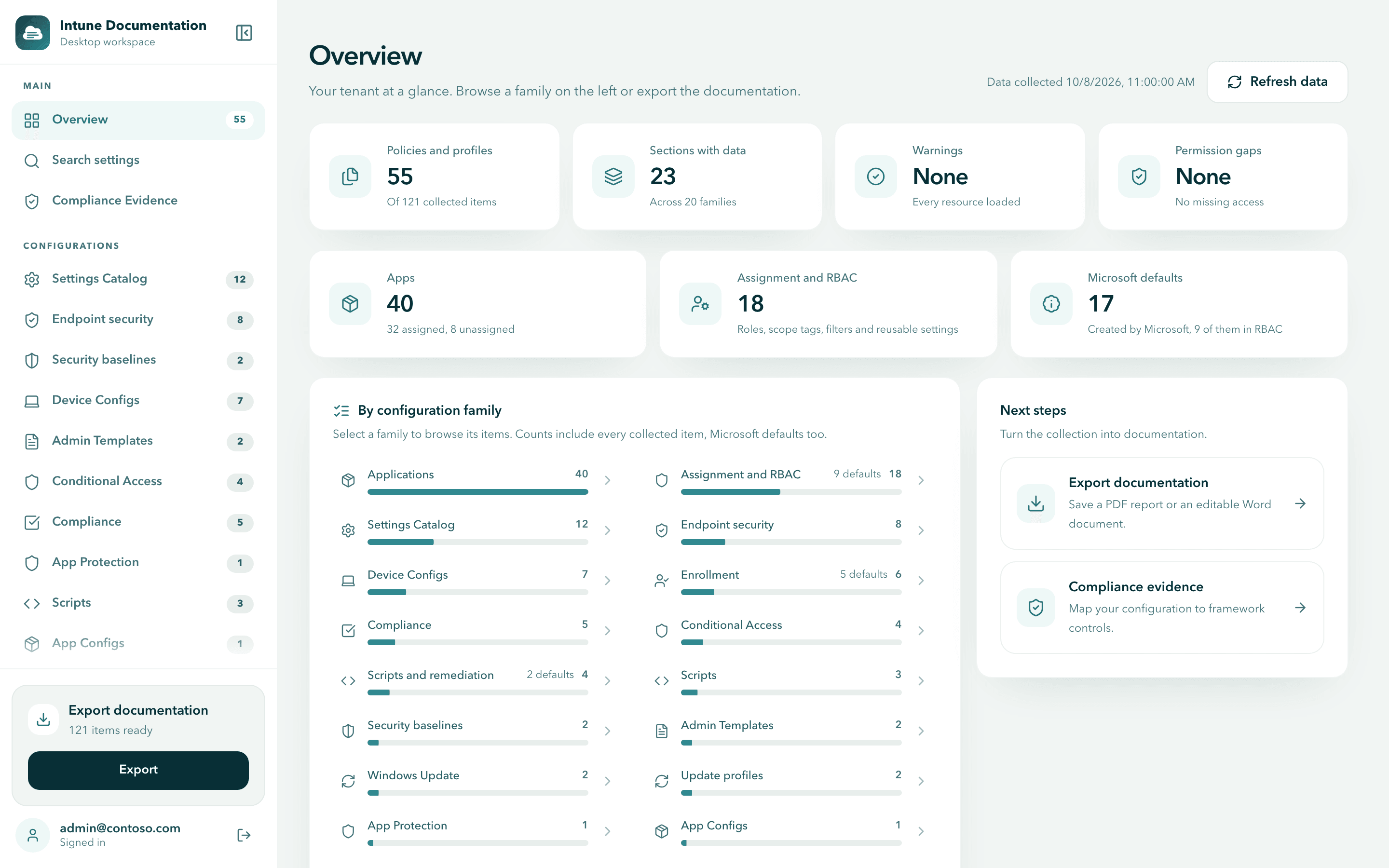
After a collection, the Overview shows your tenant at a glance. Every card with a number can be selected to jump to the details behind it.
The top row
| Card | What it counts |
|---|---|
| Policies and profiles | The configuration you created: policies and profiles only. Apps, assignment and RBAC items and Microsoft defaults are counted on their own cards. The line below shows the total number of collected items. |
| Sections with data | How many configuration sections contain at least one item, and across how many families. |
| Warnings | Resources Microsoft Graph did not return completely. None means every resource loaded. |
| Permission gaps | Configuration types your account or app registration was not allowed to read. None means no missing access. |
The second row
| Card | What it counts |
|---|---|
| Apps | All apps in the tenant, with how many are assigned and how many are unassigned. |
| Assignment and RBAC | Roles, role assignments, scope tags, assignment filters and reusable settings. |
| Microsoft defaults | Items Microsoft creates in every tenant: built-in roles, the Default scope tag, the default enrollment configurations, tenant settings, Microsoft published remediations and connectors that are not set up. The line below says how many of them are in RBAC. |
Nothing is left out of your documentation
The cards only change how items are counted on the Overview. Every collected item, Microsoft defaults included, can be browsed, searched and exported. A whole tenant export contains all collected items.
By configuration family and Next steps
By configuration family lists every family that has data, largest first. Families that contain Microsoft defaults show how many, for example "5 defaults". Select a family to browse it.
Next steps takes you to Export documentation or Compliance evidence.
Configuration families in the sidebar
The sidebar groups your configuration into families under Configurations. The number next to each family is how many items it holds.

The everyday families are always visible:
Settings Catalog, Endpoint security, Security baselines, Device Configs, Admin Templates, Conditional Access, Compliance, App Protection, Scripts, App Configs, Windows Update and Enrollment.
Select More coverage to expand the rest. Only families with data or warnings appear there:
Update profiles, Endpoint security (legacy templates), Scripts and remediation, Provisioning, Applications, Assignment and RBAC, Tenant and service, Connectors and Specialist policies.
A few families are worth knowing:
- Endpoint security and Security baselines hold Settings Catalog policies created from an endpoint security or security baseline template. They do not appear a second time under Settings Catalog.
- Endpoint security (legacy templates) holds policies created from the older endpoint security templates.
- Connectors includes the Apple enrollment program token.
Browse a family
Select a family in the sidebar or on the Overview. The page lists its sections and every item in them.
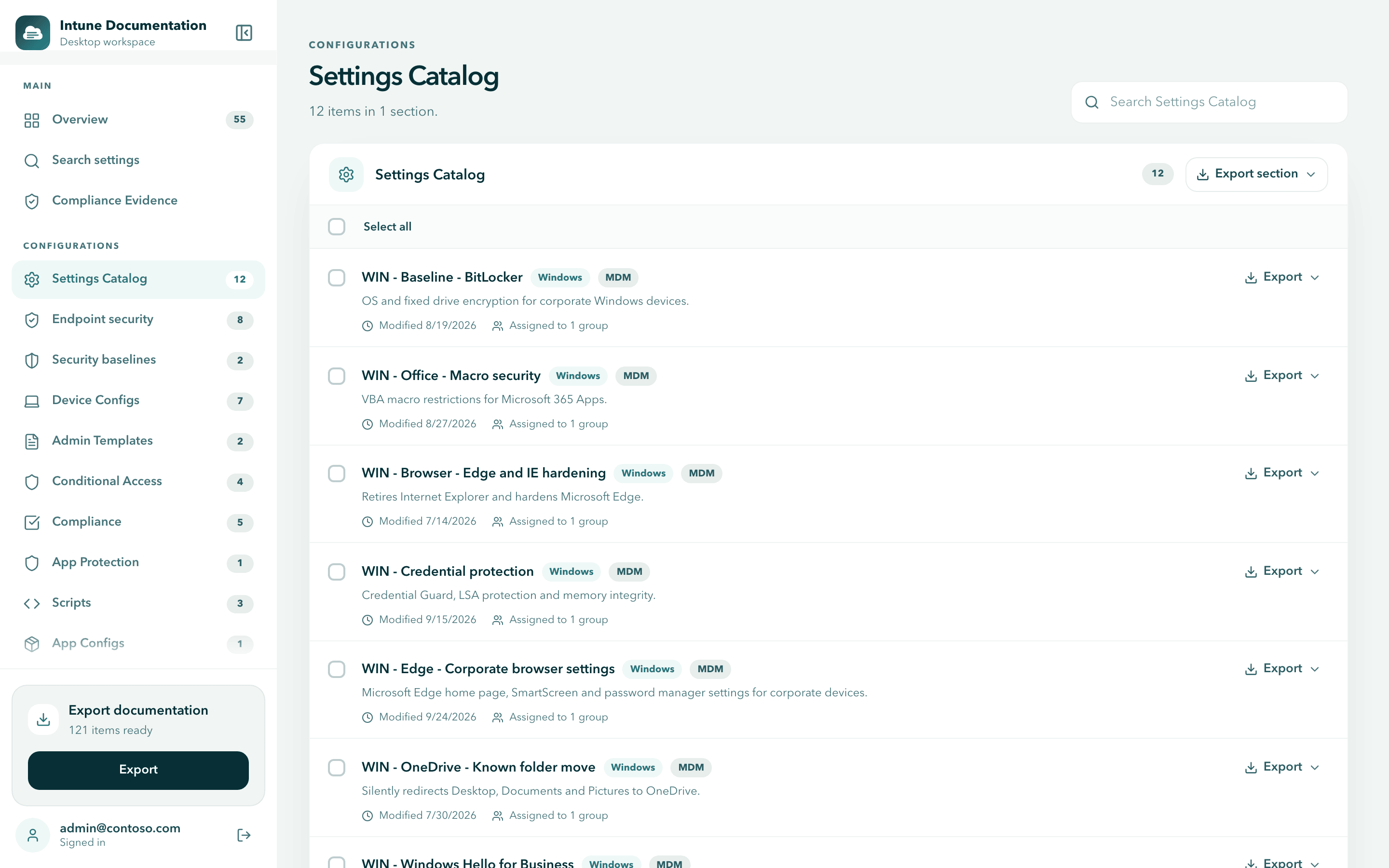
Each item shows:
- its name and description
- platform and technology badges, such as Windows and MDM
- when it was last modified
- how it is assigned, for example "Assigned to 1 group", "All users", "All devices" or "Not assigned"
- a Microsoft default label for items Microsoft created
Use the search field at the top right to filter the family by name, description, type or platform. The search resets when you open another family.
Want to see the settings inside a policy? Search for the policy name in Search settings. It lists every setting the policy configures, with its value.
Each item and each section has an Export menu. To pick items across families for one document, see Select and export.
Warnings and permission gaps
The app collects everything it can, even when part of the tenant cannot be read. Anything missing is listed on the Overview.
- "Limited permissions detected" lists each configuration type the app could not read, with the permission it requires. Ask a tenant administrator to grant that delegated permission, or sign in with an account that has a suitable role.
- "N resources could not be fully loaded" means Microsoft Graph did not return complete data for some resources. Everything else was loaded, and the export marks what is missing. Select View affected resources to see which. This is often temporary, so collect again later.
Selecting the Warnings card opens the first affected family, filtered to the items that could not be loaded, or scrolls to the warnings on the Overview. Select Show all items to clear that filter.
Fixes for both messages are in Permission gaps after collection.
Refresh your data
Collect again whenever your configuration changes, so your documentation stays current. The Overview shows when the data was collected: "Data collected just now", then "Data collected 5 minutes ago" or "Data collected 3 hours ago". After 24 hours it shows the date and time instead, for example "Data collected 10/8/2026, 11:00:00 AM". Select Refresh data to run a new collection.
The new collection replaces the previous one. If Search settings is open, its results update in place and keep your query and filters.
Export
Once the collection has finished, the Export documentation card in the sidebar shows how many items are ready. Select Export to create a PDF report or a Word document of the whole tenant or of selected items. See Select and export.
Next steps
Sign in and activate your license
Connect the desktop app to your app registration, sign in with Microsoft, check the permissions and activate your license.
Search settings
Find any setting across every collected policy by name, value or technical id, and see where it is configured, with its value, platform and assignment.