
Settings and updates
Change the app registration, keep the desktop app up to date, export diagnostics, sign out and reset the app.
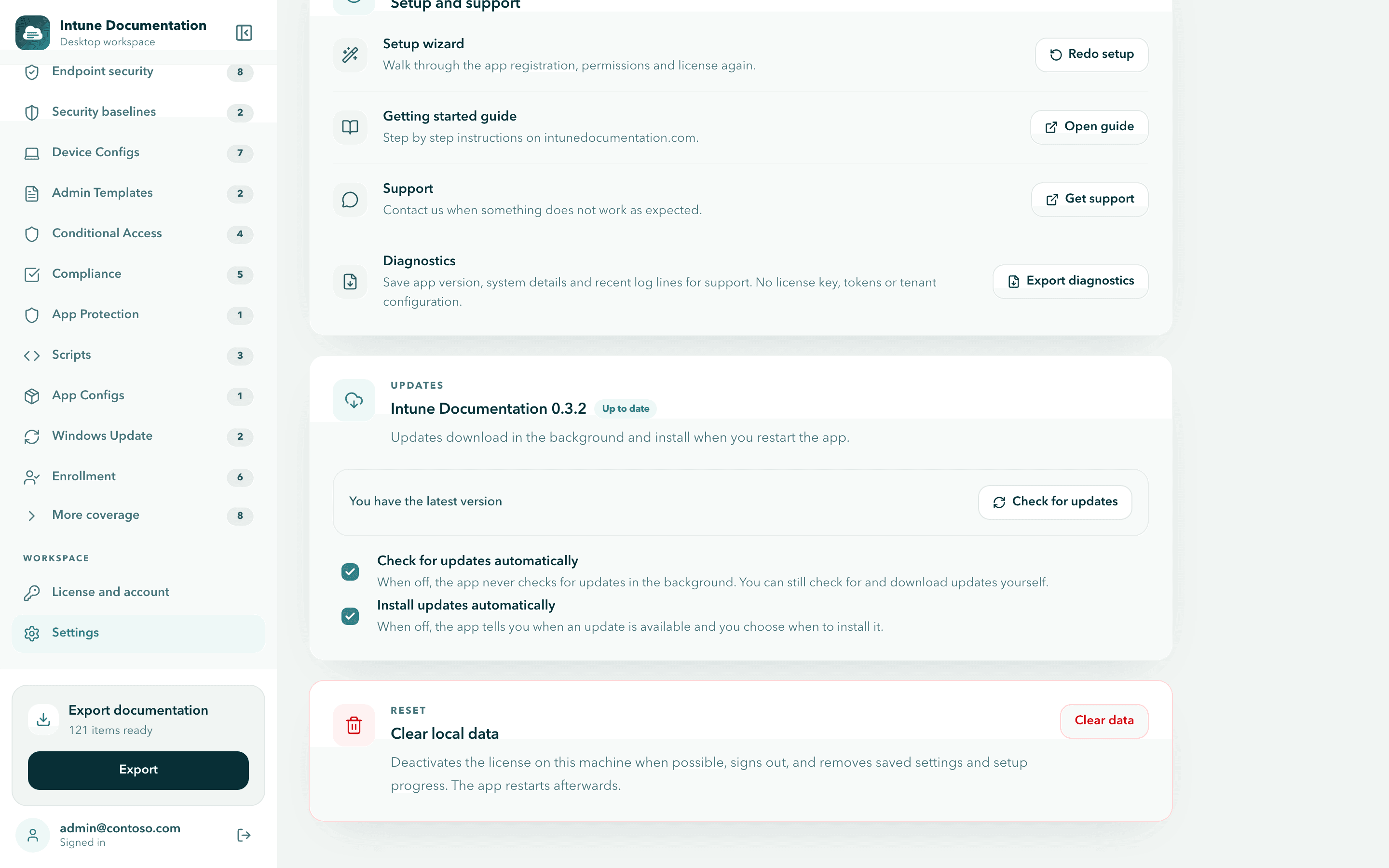
Open Settings at the bottom of the sidebar, under Workspace. It holds the app registration the app signs in with, update options, help and support, and a reset.
App registration
The App registration card at the top shows the Application (client) ID and Directory (tenant) ID the app signs in with. You entered them in the setup wizard.
To use a different app registration, for example another customer tenant, enter the new values and select Save changes. If you are signed in or have collected data, the app asks first: Save and sign out? Saving signs you out and discards the collected data. Sign in again and collect for the new registration. Discard brings back the saved values.
See Work with multiple tenants for the full switching flow.
Setup and support
| Option | What it does |
|---|---|
| Redo setup | Opens the setup wizard again, to walk through the app registration, permissions and license. |
| Open guide | Opens the getting started guide in your browser. |
| Get support | Opens the support page. See Get support. |
| Export diagnostics | Saves a diagnostics file for support. It contains the app version, system details, your tenant ID, your license plan and status, collection counts and recent log lines, and no license key, tokens or policy contents. Attach it when you contact support. |
The same help links are also in the app's Help menu.
Updates
Updates are free with every plan. The Updates card shows your installed version and its state, for example Up to date or Update ready.
Check for updates now
Select Check for updates. When a new version is available, select Download update. When it has downloaded, select Restart to update. The app restarts on the new version.
A banner at the bottom of the sidebar also tells you when an update is available or ready. While an update waits to be downloaded, the banner has a close button (Later). Select it to hide the banner for this session.
Automatic update options
| Option | Default | When on | When off |
|---|---|---|---|
| Check for updates automatically | On | The app checks shortly after launch and every four hours, and tells you when an update is available. | The app never checks in the background. You can still check for and download updates yourself. |
| Install updates automatically | Off | Updates download in the background and install when you restart the app. | The app tells you when an update is available, and you choose when to install it. |
Install updates automatically needs automatic update checks, so it is only available while Check for updates automatically is on.
Update checks contain no tenant or account data. They include a random update identifier that the updater creates on your computer, and our hosting provider processes your IP address at request level. Installers are downloaded from GitHub. See Security and privacy.
Prefer to update by hand, or the update cannot be downloaded on your network? Download the newest installer from Install the desktop app and install it over the current version. Update messages are explained in Troubleshooting.
Sign out
Signing out ends your Microsoft session in the app and discards the collected data. Your license and your settings stay.
Select the sign out button next to your account at the bottom of the sidebar, or Sign out on the account card under License and account. To continue, select Sign in and collect again.
Deactivate this machine
Deactivating frees this computer's installation, so you can use the license on another computer. Do this before you replace or hand over a computer.
Open License and account
Select License and account in the sidebar.
Deactivate
Select Deactivate this machine. The app confirms: "This machine was deactivated. You can use the key on another machine."
Deactivating releases the license on this computer for every tenant it was activated for, and removes the key from this computer. To use the app here again, paste your key under License and account. More details are in Deactivate a machine.
Clear local data
Clear local data resets the app to a fresh install. Use it when you hand over a computer, or when the setup is in a state you cannot recover from.
Start the reset
Under Clear local data, select Clear data.
Confirm
The app asks Clear all local data? Select Clear and restart.
The app deactivates the license on this computer when possible, signs you out, removes the app registration settings and setup progress, and restarts with the setup wizard.
If the deactivation is not confirmed
When the licensing service does not confirm the deactivation, the app tells you so, because this computer may still use one of your license's installations. Select Open customer portal to release it there. See Plans and billing.
Where the app stores data
Your tenant configuration and your Microsoft tokens are only held in memory while the app runs. PDF and Word files are saved where you choose. On disk, the app keeps these files in its app data folder:
| File | Contents |
|---|---|
settings.json | Client ID, tenant ID and your update options |
license.bin | Your license key and signed license token, encrypted with the operating system keychain |
install-id | The random installation ID used for license checks |
window-state.json | Window size and position |
logs | Recent app log lines, used for diagnostics |
The app data folder is the standard per-user location for an app named Intune Documentation, usually ~/Library/Application Support/Intune Documentation on macOS and %APPDATA%\Intune Documentation on Windows. Clear data removes the files listed above. The folder also holds small files kept by the browser engine built into the app and by the updater, which are not listed here.
Related pages
Work with multiple tenants
Document several customer tenants with one MSP license: one app registration per tenant, switching tenants, tenant counts, sharing and per-tenant baselines.
Plans and billing
Compare the Pro and MSP plans, share a license with colleagues, free up installations and manage your subscription.