
Select and export
Browse your configuration by family, pick the policies you need and export them as a PDF report or an editable Word document.
Most documentation requests are not about the whole tenant. An auditor wants your Windows baseline, a colleague needs the compliance policies, a change board asks for the BitLocker settings. The desktop app lets you pick exactly those policies and export them as a PDF report or a Word document, with every setting and assignment.
You can also export everything at once. Both work from your last collection, so collect first. See Collect your configuration.
Browse a configuration family
The sidebar groups your configuration into families, such as Settings Catalog, Endpoint security, Security baselines, Device Configs and Compliance. The number next to each family is how many items it holds.
Select a family to open it. Each item shows its name, platform badges, its description, when it was last modified and how it is assigned, for example Assigned to 1 group or Not assigned.
Endpoint security policies and security baselines have their own families. They do not appear under Settings Catalog.
Search within a family
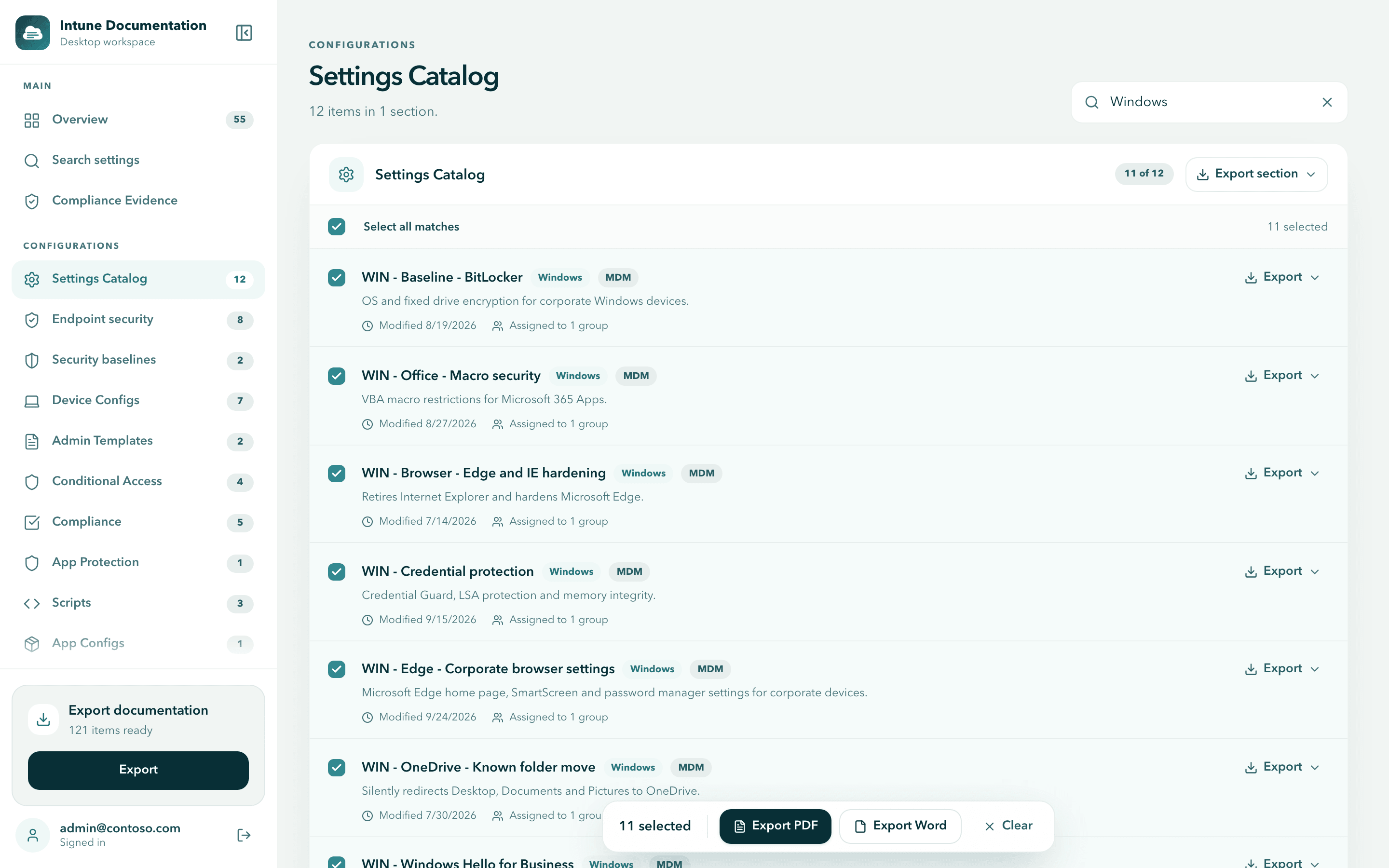
The search box at the top right of a family, such as Search Settings Catalog, filters the list while you type. It matches item names, descriptions, policy types and platforms. The count on each section changes to show how many items match, for example 11 of 12.
This search looks at the items themselves, not their settings. To find every policy that configures a particular setting, use Search settings instead.
Select items
Every item has a checkbox. Select the ones you want in your document.
- One by one: select the checkbox of each item.
- All at once: select Select all at the top of a section. While a search is active it reads Select all matches and selects only the items that match.
- Across families: your selection stays when you switch to another family, and when a search hides selected items. You can build one document from several families.
As soon as something is selected, the selection bar appears at the bottom of the window. It shows how many items are selected, and in how many sections.
Export your selection
The selection bar is the quickest way to export what you picked.
Choose a format in the selection bar
Select Export PDF or Export Word. Select Clear instead to start over with an empty selection.
Wait for the document
The app shows the export progress in steps: it prepares the data, resolves group names, fetches device counts and generates the document. You can keep browsing while it works.
Choose where to save
A save dialog opens in your Documents folder. Pick a folder and a name, then save. When the export is done, select Open file to open it, or Show in folder (Show in Finder on macOS) to find it.
You can export up to 5,000 selected items in one document. For more, export the whole tenant.
The Export documentation screen
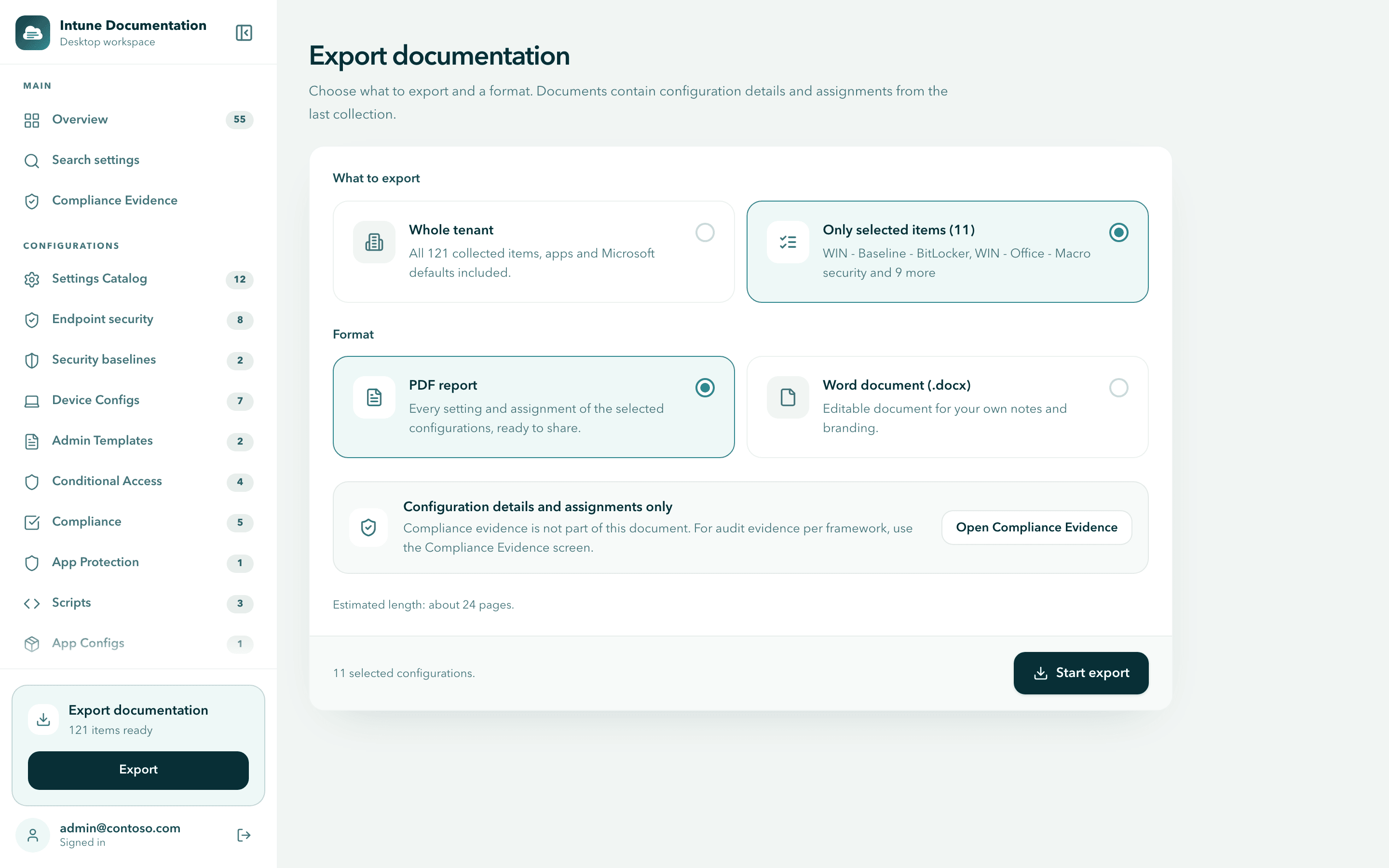
Export documentation gives you all options on one screen. Open it with the Export button at the bottom of the sidebar.
Choose what to export
When you have selected items, What to export offers two choices:
- Whole tenant: every collected item, including apps and Microsoft defaults.
- Only selected items: just your selection. The number in brackets is how many items you selected, and the first names are listed below it.
Without a selection, the app exports the whole tenant and does not show this choice.
Choose a format
- PDF report: every setting and assignment, ready to share.
- Word document (.docx): an editable document for your own notes and branding.
For a PDF, the screen shows the estimated length, for example Estimated length: about 24 pages. For a very large tenant it warns that generating can take a few minutes, and suggests the Word document, which is quicker to create.
Start the export
Select Start export, then choose where to save the file.
The documentation export contains configuration details and assignments. Compliance evidence is a separate report. Select Open Compliance Evidence on this screen, or see Compliance evidence.
Other ways to export
- One item: every item has its own Export menu with Export PDF and Export Word.
- One section: Export section at the top of a section exports everything in it.
Where files are saved
The app never saves a document without asking. Every export opens a save dialog that starts in your Documents folder, and you decide where the file goes. If a file with that name already exists, the app asks before replacing it.
The finished screen shows the full path of the file. The document is created on your machine. To read group names and device counts, the export calls Microsoft Graph directly, so you need to be signed in and have an active license. See Security and privacy.
Select only Windows configurations
To document Windows settings without your iOS, Android or macOS policies, search each family for Windows and export the selection. The app selects policies and profiles for documentation, not individual devices.
Open a family
After collection, open a family such as Settings Catalog, Endpoint security, Security baselines, Device Configs or Compliance. If you already selected items, select Clear in the selection bar to start fresh.
Search for Windows
Enter Windows in the search box at the top right. Search matches names, descriptions, policy types and platforms, so it also finds Windows policies whose names do not contain the word.
Select the matches
Check the platform badges and policy types of the results. Select Select all matches in each section you want, or select single checkboxes. Deselect anything that does not belong in your report.
Repeat in other families
The search resets when you change families, so enter Windows again in each one. Your selection stays. Before you export, clear the search once to check for items you did not mean to select.
Export
Select Export PDF or Export Word in the selection bar. Or open Export documentation, choose Only selected items and select Start export.
Search is a text filter
Family search is not a strict platform filter. A mobile policy that mentions Windows in its description can match, and a Windows item without Windows in its searchable fields can be missed. Review the results and add missing items by hand.
Export section ignores your search
Export section exports the entire section, including items hidden by the search. To export only what you picked, use the selection bar or Only selected items.
If something does not work
- An export button is greyed out: hover over it to see why. Common reasons are a running collection, no collection yet, being signed out or no active license.
- "Choose at least one configuration to export." and other export messages: see Troubleshooting.
Next steps
- Search settings: find every policy that configures a setting.
- Compliance evidence: export evidence reports for frameworks such as NIS2 and ISO/IEC 27001.
- Management report: a one-page summary for management.
Search settings
Find any setting across every collected policy by name, value or technical id, and see where it is configured, with its value, platform and assignment.
Compliance evidence
Map your Intune configuration to frameworks such as NIS2, ISO/IEC 27001, SOC 2, NIST and BSI IT-Grundschutz, and export an evidence report for your auditor.