
Export your configuration
Choose what to export from the web app and download your Intune configuration as a document.
Once your configuration has loaded, you pick the policies you want and export them as a PDF or Word document. The document is built in your browser and saved straight to your device. Nothing is uploaded to us.
If you have not collected your configuration yet, start with Get started with the web app.
What the document contains
Every export is a readable report, not a data dump. It includes:
- A cover page with your organization, the author and the generation date.
- An executive summary with key metrics, assignment coverage, potential gaps such as unassigned or stale policies, a configuration inventory and platform coverage.
- Every selected policy with its created and modified dates, its assignments and a table of each setting with its value and description.
- Assignments resolved to names. Group targets and assignment filters are shown by name, not by ID.
- A compliance evidence section that maps your configuration to frameworks, unless you turn it off.
- Collection warnings. If Microsoft Graph returned partial data for a section, the document says so instead of looking empty.
Sensitive values such as script bodies, passwords and tokens appear as [Redacted]. See Security and privacy.
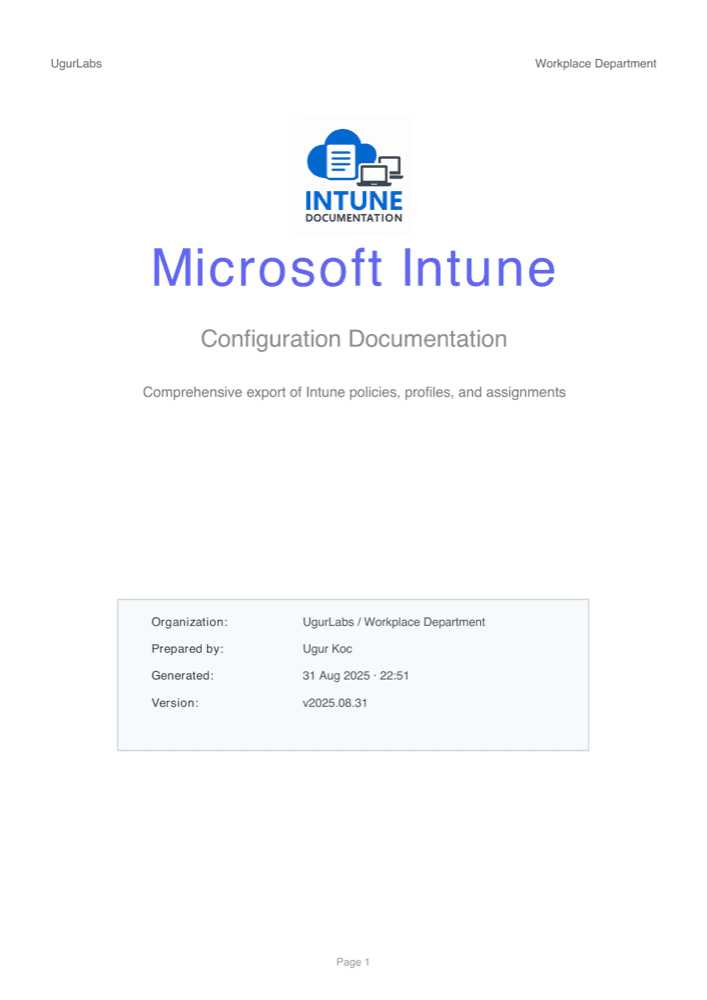
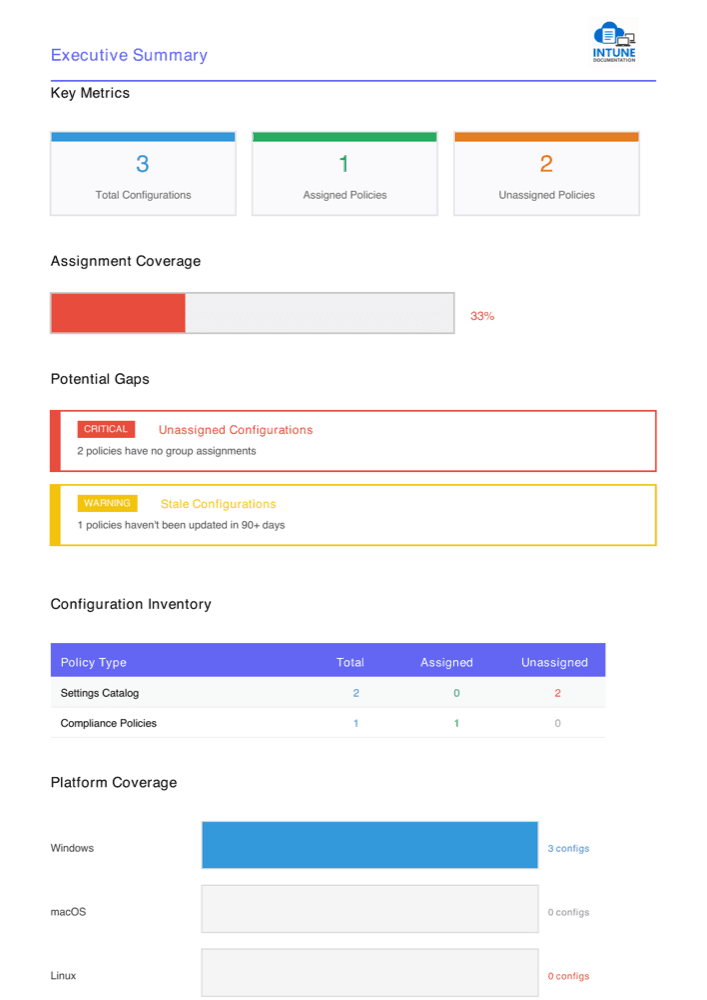
Want to see a full example first? Download the sample report (PDF).
Select what to export
You decide exactly which policies go into the document. Nothing is selected when the dashboard first loads.
- Whole categories: on the Overview, use the checkboxes under Selection progress to add or remove all policies of a type.
- Everything: open any configuration type in the sidebar and tick Select all configurations above the list.
- One section at a time: use the checkbox in a section header to select all items in it.
- Single policies: tick the checkbox next to each policy you want.
- By name: type in Search configurations… to narrow the list, then select Select matching to select only the results. This replaces any earlier selection, so check the count before you export.
The Selected for export card and the sidebar show how many items you have picked.
Export the document
Open the export dialog
Select Export selected at the bottom of the sidebar. The button is available once collection has finished and at least one item is selected.
Choose the format
Under Select export format, pick one:
- Detailed PDF report for a finished document you can share or archive.
- Word document (.docx) if you want to edit the text, add your own chapters or paste it into an existing template.
Decide on compliance evidence
Include compliance evidence preview is on by default. It adds the framework-to-control evidence mapping to the document. Turn it off to export only the selected configuration details.
For a full, audit-ready evidence report per framework, use Compliance mapping instead.
Start the export
Select Start export. A progress view shows each stage. You can minimize it to a notification and keep working in the dashboard.
When it finishes you see Export complete and the download starts automatically. If it does not, check your downloads folder.
Export completed with warnings
If some policies could not be exported, the dialog shows how many failed. Select View failed policies to see which ones. The rest of the document is complete. If it keeps happening, see Troubleshooting.
Add your branding
Select Branding in the sidebar to make the report look like your own. The settings are grouped in four tabs:
| Tab | What you can set |
|---|---|
| Company Info | Company name, department, contact email, website, and your company logo with its position. |
| Colors & Style | Primary, secondary, accent and text colors, and the font family. |
| Layout | Cover page with report title and subtitle, header and footer text, a confidentiality notice, and a watermark (PDF). |
| Document | Table of contents, document title, author and classification (Public, Internal, Confidential or Restricted). |
Select Save Settings to apply them. Your branding is saved in your browser, so it is still there next time you use the same browser. Reset to Default restores the original look.
Next steps
- Map your configuration to a compliance framework and download an evidence report.
- Need exports for many tenants, or collection that stays on your machine? See the desktop app.