
Compliance evidence
Map your Intune configuration to frameworks such as NIS2, ISO/IEC 27001, SOC 2, NIST and BSI IT-Grundschutz, and export an evidence report for your auditor.
Auditors, insurers and customer questionnaires all ask the same thing: show me that the control is in place. For the technical controls, the answer is in your Intune configuration. Finding it by hand means screenshots, exports and a spreadsheet.
Compliance Evidence does that work for you. It checks your collected policies against the technical controls of a framework, shows which settings provide evidence, which are missing or set differently, and whether each policy is assigned. Then it turns the result into a PDF evidence report you can hand straight to an auditor.
Evidence, not certification
Evidence reports document technical configuration evidence from Intune and Conditional Access. They are not a compliance certification, a compliance score or an audit result, and they do not replace an audit. Organisational measures, such as policies, training and supplier management, need their own assessment.
Before you start
- Collect your tenant. The assessment runs on your last collection. See Collect your configuration.
- Be signed in with an active license. Compliance evidence is part of every desktop plan. See Plans and billing.
- Grant Policy.Read.All. Many controls depend on Conditional Access, for example MFA. Without this permission the app cannot collect Conditional Access and tells you so. See Create the app registration.
Supported frameworks
The app supports twelve frameworks.
| Framework | What is covered |
|---|---|
| ASD Essential Eight | Australian enterprise IT requirements with target Maturity Levels 1, 2 and 3. Configuration evidence only. |
| ISO/IEC 27001 | Selected Annex A technology controls mapped to managed-device configuration evidence. |
| NIS2 Directive | EU Directive 2022/2555 Article 21(2) measures with Danish and German law references. Organisational measures need separate assessment. |
| SOC 2 | Selected Trust Services Criteria mapped to managed-device configuration evidence. |
| HIPAA Security Rule | Selected 45 CFR Part 164 safeguards for electronic protected health information. Administrative and physical safeguards need separate assessment. |
| NIST SP 800-53 | Security and privacy controls for information systems and organizations. |
| NIST CSF 2.0 | Outcome-based guidance for managing and reducing cybersecurity risk. |
| BSI IT-Grundschutz | Baseline safeguards for systematic information security management. The report is in German. |
| Def Stan 05-138 | UK MOD supplier controls under DEFCON 658, with the Cyber Risk Profile levels at which each applies. |
| Cyber Essentials | The five NCSC control themes mapped to managed-device configuration evidence. |
| NIST SP 800-171 Rev. 2 | Requirements for protecting controlled unclassified information, as referenced by CMMC 2.0 Level 2. |
| NIST SP 800-171 Rev. 3 | May 2024 requirements for protecting controlled unclassified information. Organization-defined parameters need separate review. Select Revision 2 for CMMC Level 2. |
Choose a framework
Open Compliance Evidence
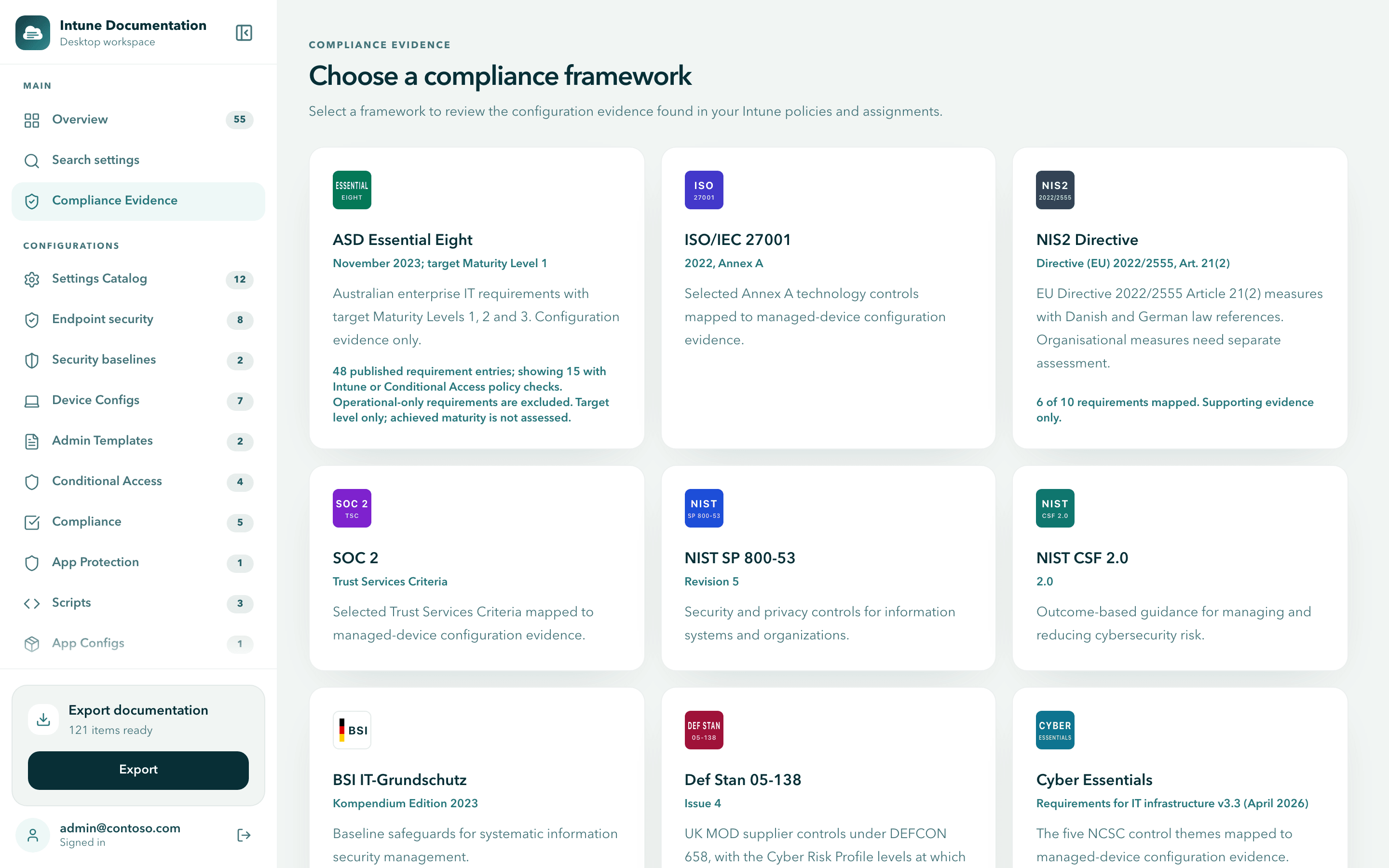
Select Compliance Evidence in the sidebar. The first time, you see Choose a compliance framework with a card for every framework.
Pick a framework
Select a card. Where the app knows the size of the published framework, the card says how many of its requirements have Intune evidence mappings, for example 6 of 10 requirements mapped. Supporting evidence only.
The app remembers your choice. To switch later, use the framework menu at the top right of the screen, or Show all frameworks in that menu to return to the cards.
Set the scope
The scope decides what the assessment, the evidence report and the management report cover.
- Platforms in scope. Choose Windows, macOS, iOS / iPadOS and Android. At least one platform stays selected. Leave out platforms you do not manage. A platform without policies is not treated as out of scope on its own.
- Essential Eight target maturity level. For ASD Essential Eight, choose Maturity Level 1, 2 or 3. The default is Level 1. The app shows evidence against the target you choose. It does not calculate the maturity level you have achieved.
- Def Stan Cyber Risk Profile. For Def Stan 05-138, choose Level 0 to Level 3, or leave All levels (scope not selected).
The assessment updates as soon as you change the scope.
Read the results
The framework screen has four parts, from summary to detail.
- Management summary. The share of safeguards in place, with tiles that filter the control list and the next actions. See Management report.
- Scope and collection. The scope options above, when the data was collected, and Collection and detection coverage, which shows per policy family how much was collected and recognized.
- Check results. Three counts across all technical checks in scope: Matches expected value, Different value and Missing, each with how many are in assigned policies.
- Mapped controls. Every control of the framework that has Intune evidence mappings.
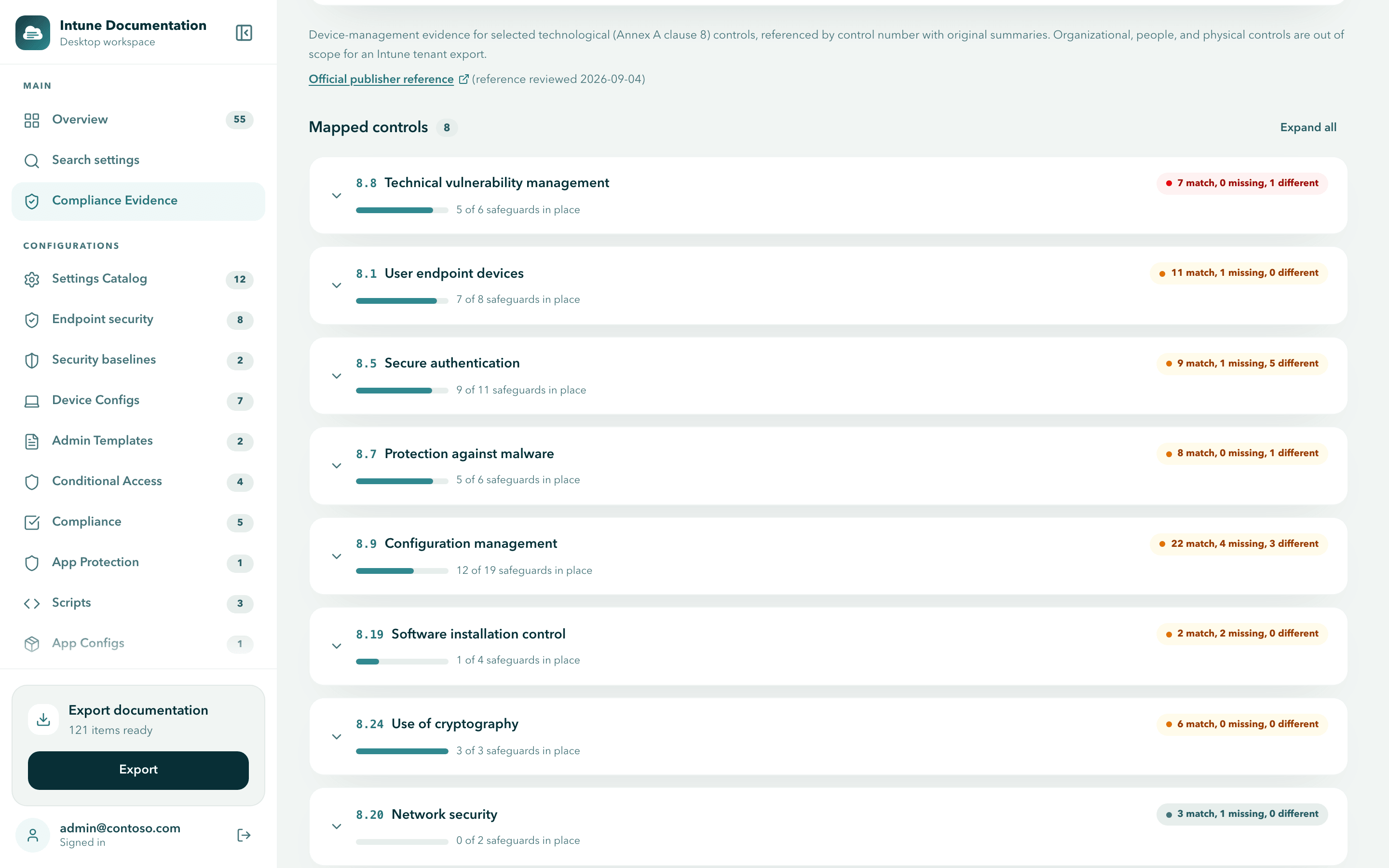
Each control shows its id and title, a bar with its safeguards in place, for example 5 of 6 safeguards in place, and a summary of its checks, for example 7 match, 0 missing, 1 different. Controls with mixed policy evidence are listed first.
Select a control to expand it. For each safeguard you see:
- every check with its Expected value and Actual value, and the policy it comes from
- the evidence: policy, policy type, setting, configured value and assignment
- warnings when a policy sets a value that works against the control, and whether that policy is assigned
Use Expand all to open every control at once.
What safeguards in place means
A safeguard is one technical capability behind a control, such as requiring device encryption. It counts as in place when a recognized setting is configured with a recognized value in an Intune or Conditional Access policy that is assigned. A setting in a policy that is not assigned does not count, because it protects no one.
Safeguards in place is a coverage figure from your configuration. It is not a compliance score or an audit result. The app does not verify device state or effective access.
Statuses in the report
Each control in the evidence report gets one status.
| Status | Meaning |
|---|---|
| Technical configuration evidence detected | Recognized settings with recognized values are configured in assigned policies. |
| Technical configuration evidence partially detected | Some of the expected evidence is there, some is missing. |
| No supported technical configuration evidence detected | No recognized setting with a known assignment was found. This does not mean the control is unmet by other means. |
| Mixed policy evidence | Policies give contradicting evidence for the control, for example one sets the expected value and another works against it. |
| Not assessed | The control needs evidence outside the collected settings, or data was not available. |
| Outside selected scope | The control only applies to platforms or levels outside your scope. |
Download the evidence report
Start the report
On the framework screen, select Download evidence report (PDF). The report covers all mapped controls of the framework and uses the scope you selected.
Wait and save
The app resolves group names, generates the report and then asks where to save the file. When it is saved, select Open file or Show in folder (Show in Finder on macOS).
Need the data in machine-readable form, for a GRC tool or your own records? Select Download evidence record (JSON) in the scope section. The file contains the assessment and records which data and rules the result was based on.
What the evidence report contains
Every framework report is designed to go straight to an auditor, an insurer or a customer questionnaire.
- Cover. The share of controls with technical evidence at a glance, with the document control details underneath.
- Executive summary. The share of controls with technical evidence, the number of safeguards in place, counts per status, coverage per control family and the key findings.
- Results overview. Every control with its status, how many of its capabilities have evidence, the evidence references and the page of its detail section.
- Control details. Each capability has its own card with a table of expected and actual values, the policies behind it and whether each policy is assigned. Settings and values use their names from Intune, such as "Require Device Encryption: Enabled", with the technical name underneath. Gaps and conflicting settings are highlighted, and the parts of a control that need an organisational review are listed separately.
- Evidence register. Every piece of evidence with its policy, type, setting, value and assignment, with a short guide on how to read the report.
The PDF is bookmarked by control family. Status is always shown with a shape and a label as well as a colour, so the report stays readable when printed in black and white.
BSI IT-Grundschutz in German
The BSI IT-Grundschutz report is written entirely in German. For each requirement it adds a block for the manual assessment (IT-Grundschutz-Check) with fields for implementation status, the person responsible, a target date and a comment. Your reviewer fills these in, independently of the automated technical evidence.
See a sample first
Want to know what your auditor will receive before you share your own report? Sample evidence reports for every framework, based on a fictional tenant, are on intunedocumentation.com.
Tips for a good evidence report
- Collect right before you export. The report shows when the data was collected. Fresh data avoids questions.
- Fix permission gaps first. If Collection and detection coverage shows a family as incomplete, the controls that depend on it lack evidence. See Permission gaps.
- Look at Set up but not switched on. Policies that are configured but not assigned are the quickest wins: assign them, collect again, and the safeguards count.
- Keep a baseline. Save a baseline with every report so next month's management report shows your progress.
Next steps
- Management report: a one-page summary for management, with month-over-month change.
- Search settings: find every policy that sets a value the report flags as different.
- Select and export: attach the full configuration of the policies behind the evidence.
Select and export
Browse your configuration by family, pick the policies you need and export them as a PDF report or an editable Word document.
Management report
Export a one-page security summary for management in English or German, with month-over-month progress and an optional CIS Controls crosswalk.