
Search settings
Find any setting across every collected policy by name, value or technical id, and see where it is configured, with its value, platform and assignment.
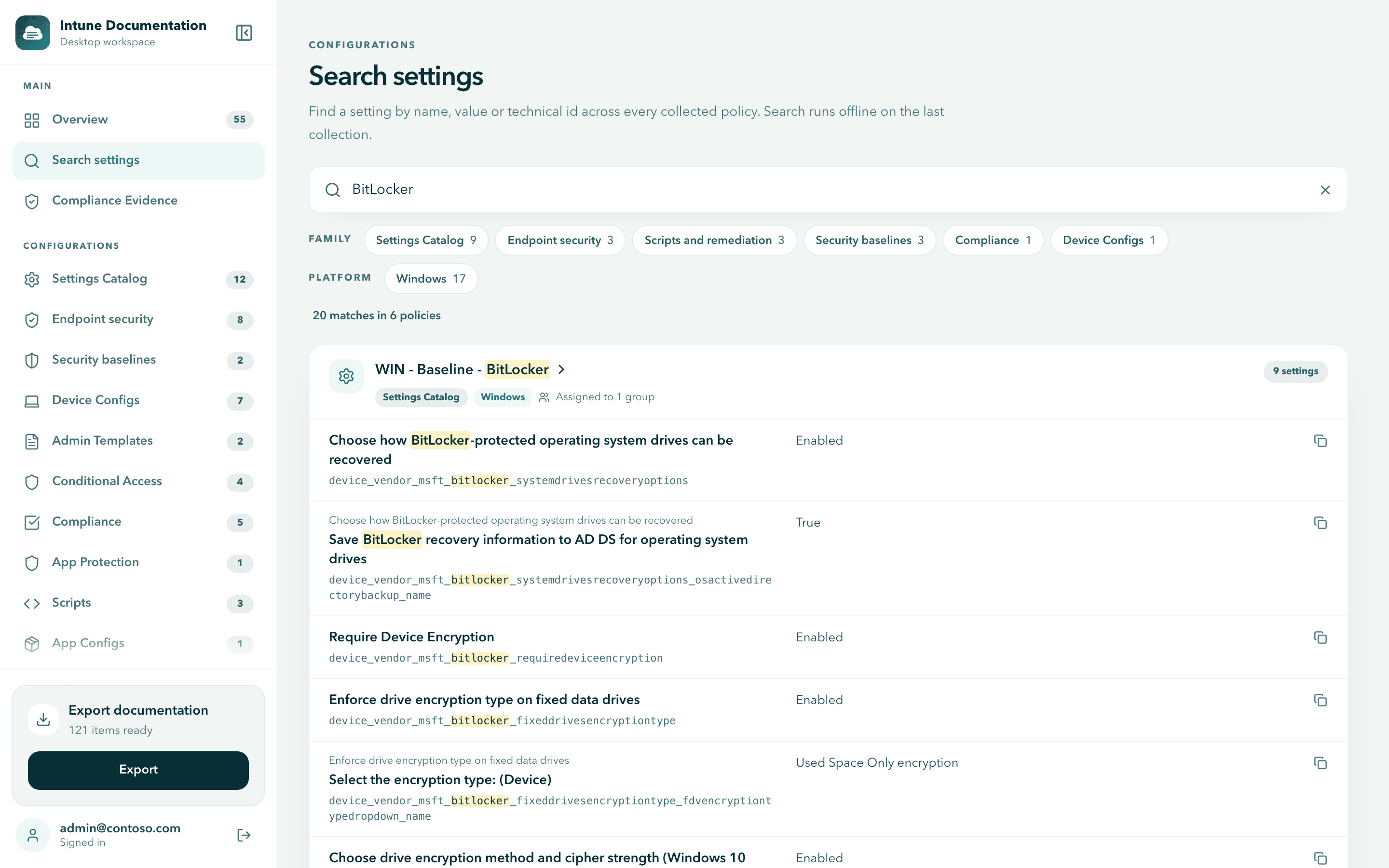
Intune spreads one topic over many places. BitLocker can be set in a Settings Catalog policy, an endpoint security policy, a security baseline and a compliance policy at the same time. Search settings looks through every setting of your last collection at once, so you see all of them on one screen.
Use it to answer the questions that usually take an afternoon of clicking through the Intune admin center:
- Which policies configure BitLocker? Search for
BitLockerand every policy that sets a BitLocker setting appears, with the value it sets. - Where is a setting set differently? Search for the setting and compare the values side by side. A policy that sets XTS-AES 128-bit stands out next to the ones that set 256-bit.
- Where is this setting id used? Paste a technical id from a script, a Microsoft article or a Graph response, such as
device_vendor_msft_bitlocker_requiredeviceencryption, and find the policies that use it. - Is the policy actually assigned? Every result shows how its policy is assigned, so an unassigned policy is easy to spot.
Before you start
Search runs on the configuration you collected, so collect your tenant first. See Collect your configuration. Until there is a collection, the page shows Collect your tenant first with a Collect tenant data button.
Search for a setting
Open Search settings
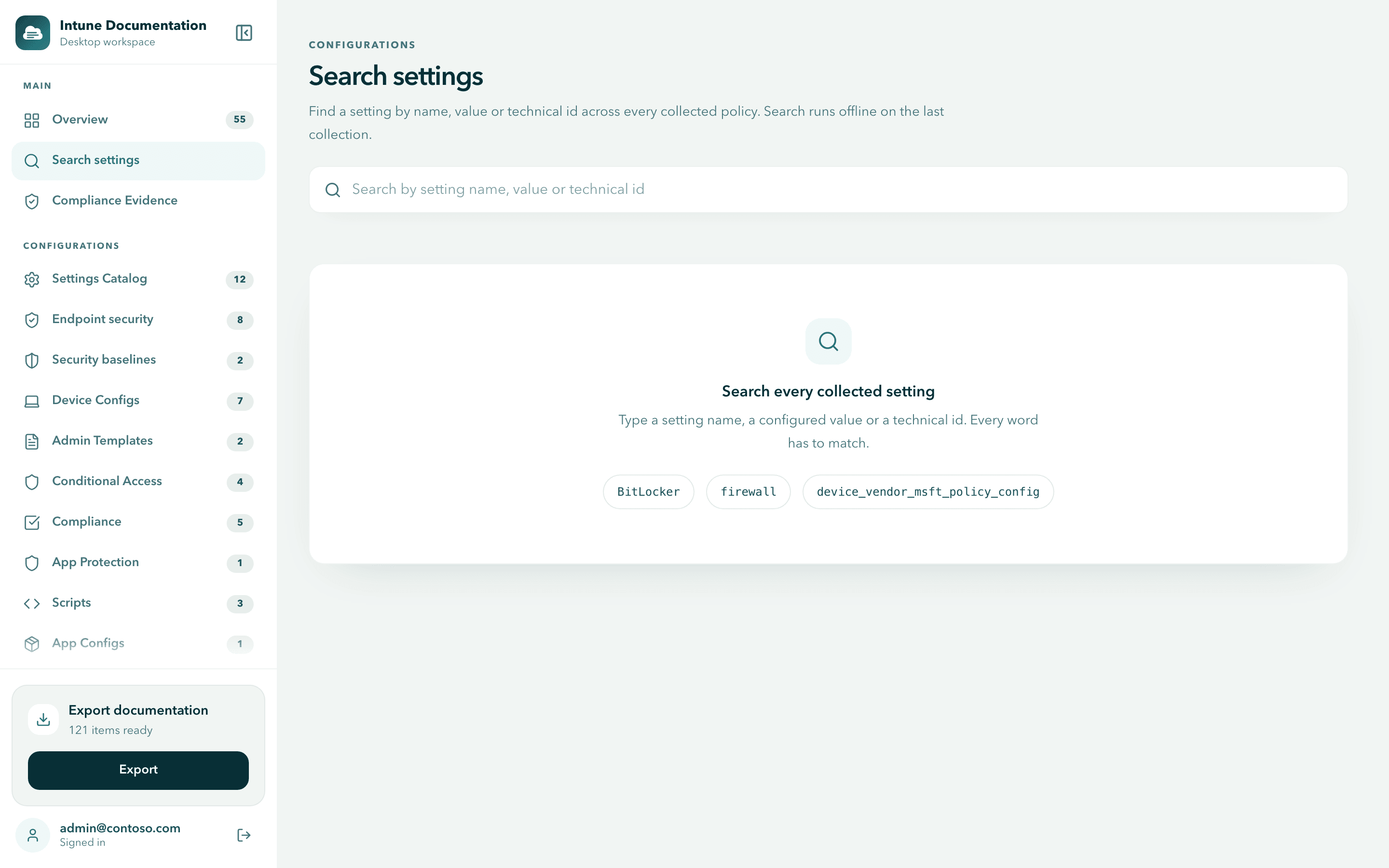
Select Search settings in the sidebar, under Overview. The search box is ready for typing.
Type what you are looking for
Type a setting name, a configured value or a technical id. Results appear while you type.
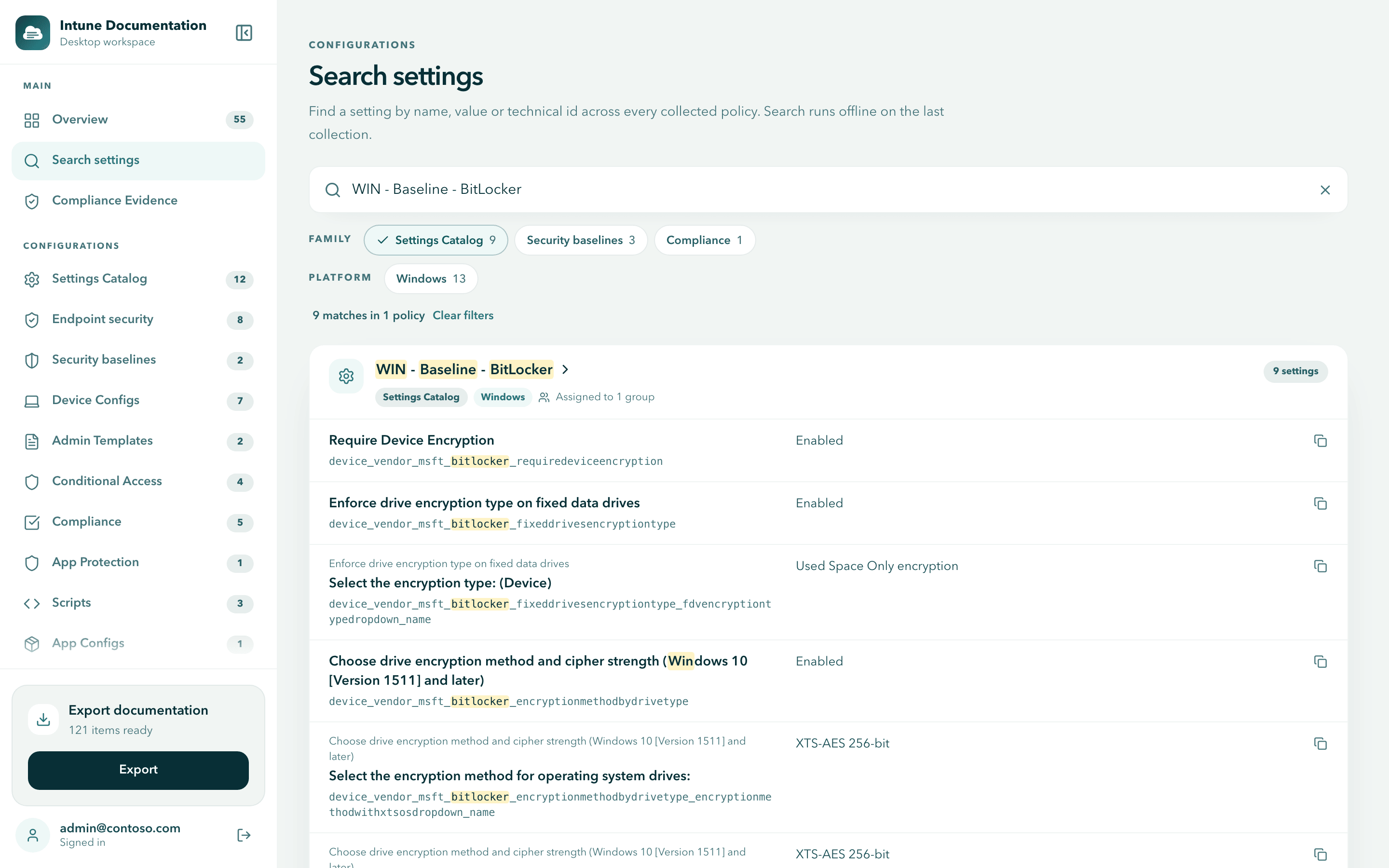
Every word has to match. The words can appear in any order and in any of these places: the setting name, its value, its technical id, the group it belongs to in the policy, or the policy name. Upper and lower case do not matter. So require encryption finds Require Device Encryption, and adding a word always narrows the results.
Read the results
The line above the results shows the count, for example 20 matches in 6 policies. Results are grouped by policy. Each policy card shows:
- the policy name, its configuration family and its platform, such as Settings Catalog and Windows
- how it is assigned, for example Assigned to 1 group, Assigned to All users or Not assigned
- how many of its settings match, for example 9 settings
- each matching setting with its name, its technical id and the configured value
Your search words are highlighted, so you see at a glance why a setting matched.
Narrow the results
Use the Family and Platform filters above the results. Each filter shows how many matches it holds. Select a filter to keep only those matches, and select it again to remove it. You can combine several.
Select Clear filters to remove all filters at once. Long filter lists are shortened, and More shows the rest.
Open a policy
Select a policy name on a result card. The app opens the policy's configuration family with the policy name already in the family's search box, so you can select it for export or check its other details. When you come back to Search settings, your search is still there.
See every setting of one policy
Search also matches the policy name. Type the name of a policy, or a distinctive part of it, to list all of its settings and values on one card. Add a Family filter if policies in other families share the name.
Long values and copying
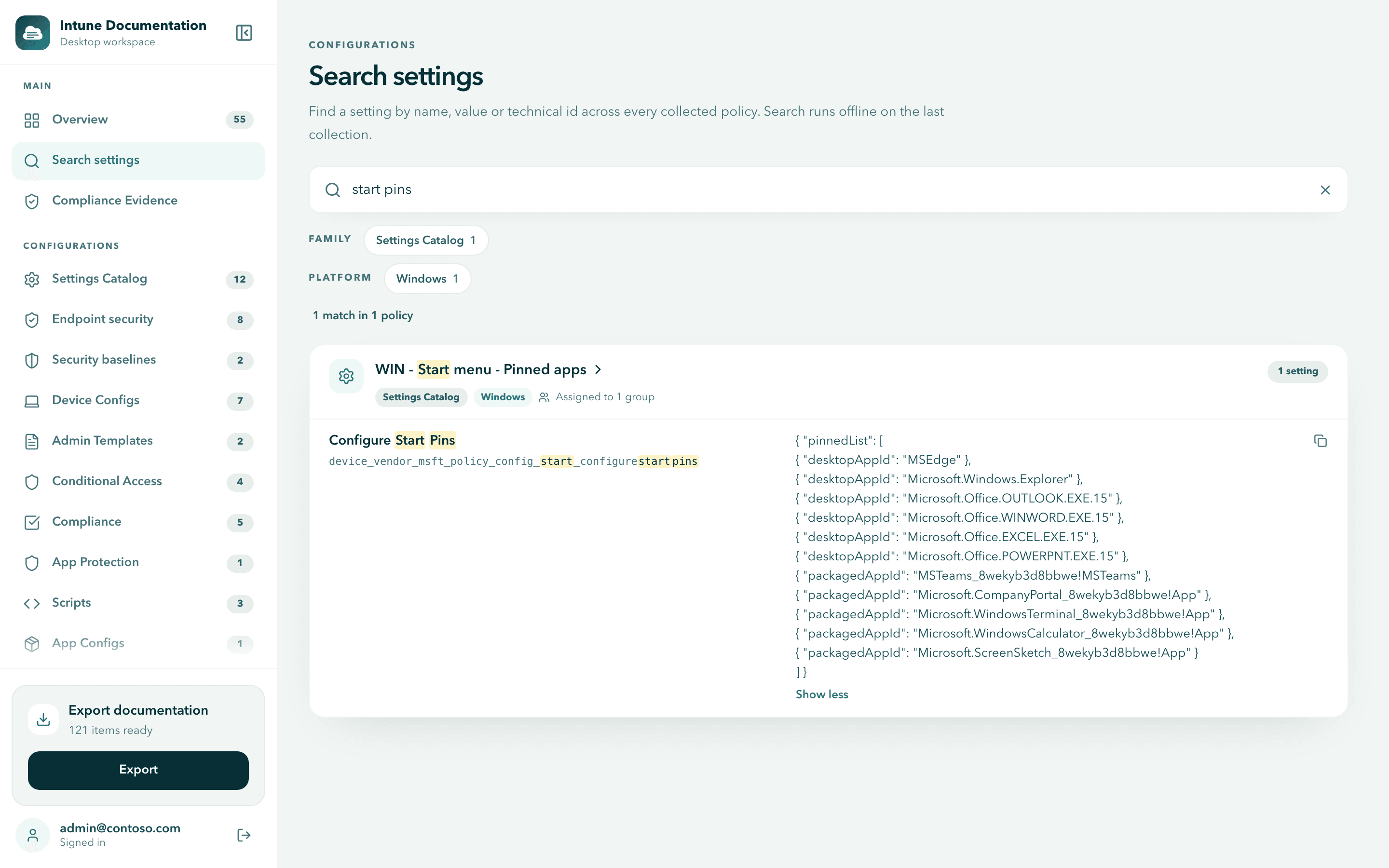
Some values are long: certificates, XML, JSON or script content. They are shortened to six lines. Select Show full value to expand the value, and Show less to fold it again.
Every value has a copy button on the right. Use it to paste a value into a ticket, a change request or a comparison.
Values longer than 1,000 characters are searched in full, but the result shows only the first 1,000 characters followed by three dots, also when expanded or copied.
How search works with your data
- Works on your current collection. Search reads the collection that the open app holds in memory. It sends nothing to Microsoft or to us, so it also works without an internet connection. The collection is not saved to disk: after you restart the app, sign in and collect again before you search.
- Refreshing keeps your search. When a new collection finishes while the page is open, the results update in place and keep your query and filters. You do not need to type again after Refresh data.
- Sign out or tenant switch clears it. Your query and filters are cleared when you sign out or switch to another tenant, together with the collection they belong to. See Work with multiple tenants.
- Up to 200 results at a time. When more settings match, the page shows the first 200 and says how many there are. Add a word or a filter to narrow the results.
- Keyboard friendly. Press Esc in the search box to clear it.
When something goes wrong
| What you see | What to do |
|---|---|
| No settings match your search | The page says how many settings it searched. Try fewer words, part of a technical id or a value. |
| No settings match your search and filters | The page says how many settings match without filters. Select Clear filters. |
| Search failed. Try again. | Select Retry. |
| The collection is no longer available | Select the collect button on the message to collect your tenant again. |
More fixes are in Troubleshooting.
Tips for good searches
- Everything about disk encryption: try
BitLocker, orFileVaultfor macOS. - Firewall settings across all profiles: try
firewall. - Where device encryption is required: try
require device encryption. - A specific setting from documentation or a script: try its technical id, for example
device_vendor_msft_bitlocker_requiredeviceencryption. - Settings that come from the Windows Policy CSP: try the start of an id, such as
device_vendor_msft_policy_config. - Policies that set a specific value: try the value itself, such as
XTS-AES 256-bit. - Start menu or taskbar layout: try
start pins. - Everything one policy configures: try the policy name.
More tips:
- Start broad, then add words. One word shows you where a topic lives. Each extra word narrows the list.
- Use part of a technical id. Ids are long, but any part of one works, such as
bitlocker_requiredeviceencryption. - Search for a value to find outliers. A value search shows which policies use a value, and the filters show in which families.
- Combine with filters. Select the Windows platform filter to hide macOS and mobile policies that share a setting name.
Next steps
- Select and export: turn the policies you found into a PDF or Word document.
- Compliance evidence: see how your settings map to frameworks such as NIS2 and ISO/IEC 27001.
- Collect your configuration: refresh your data after a change in Intune.
Collect your configuration
Collect your Intune configuration from Microsoft Graph with the desktop app, read the overview and browse every configuration family.
Select and export
Browse your configuration by family, pick the policies you need and export them as a PDF report or an editable Word document.