
Sign in and activate your license
Connect the desktop app to your app registration, sign in with Microsoft, check the permissions and activate your license.
This is the last part of the setup. You connect the app to your app registration, sign in with your own Microsoft account, and activate your license for your tenant. It takes about two minutes once the app registration exists.
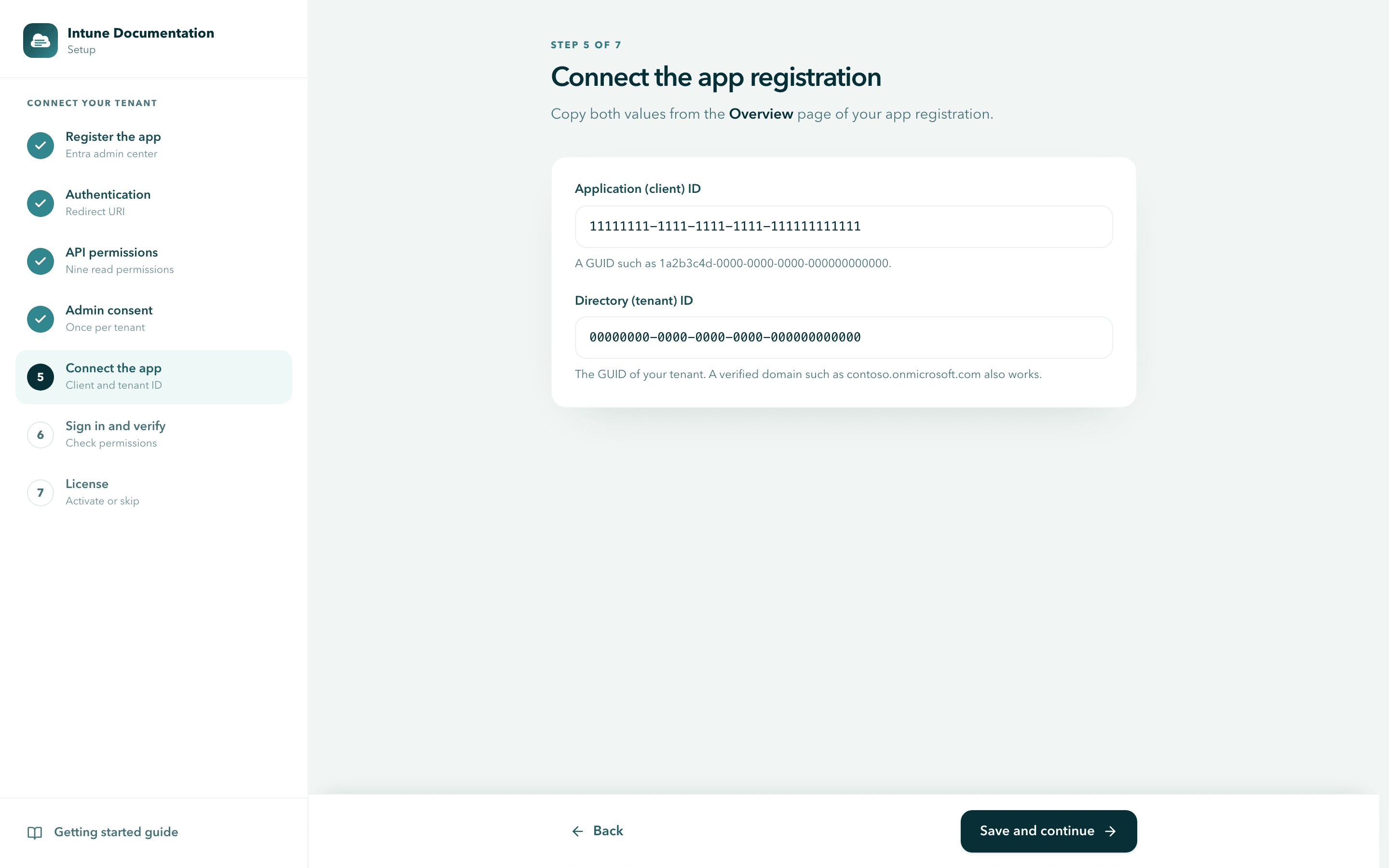
Connect the app registration
The app needs two IDs to find your app registration. In the wizard step Connect the app registration, paste the Application (client) ID and the Directory (tenant) ID, then select Save and continue. Where to find both values is explained in Copy the IDs into the app.
Sign in and verify
Signing in lets the app read your tenant with your own account. The app only sees what your account is allowed to see, and it never changes anything.
Start the sign in
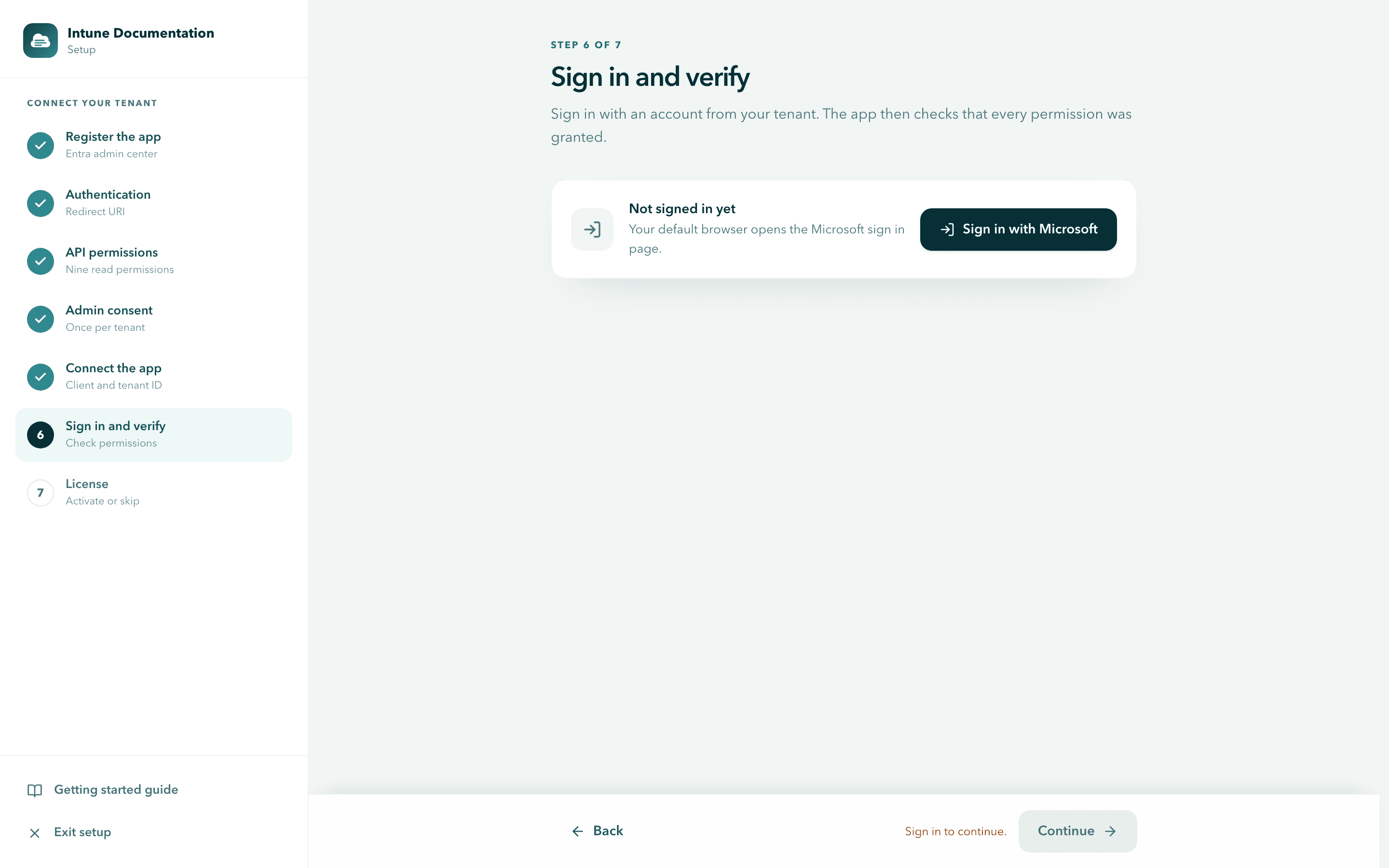
On the step Sign in and verify, select Sign in with Microsoft. Your default browser opens the Microsoft sign in page.
Sign in in your browser
Sign in with an account from the tenant you want to document. Your organization's usual sign in rules apply, including MFA and Conditional Access.
When you see "You are signed in", close the browser tab and return to the app. Finish within five minutes, otherwise the sign in times out and you start it again.
Check the permissions
Back in the app, your account and tenant ID appear at the top. The app checks all nine permissions and shows how many are granted. When everything is in place, you see 9 of 9 granted and All permissions are granted.
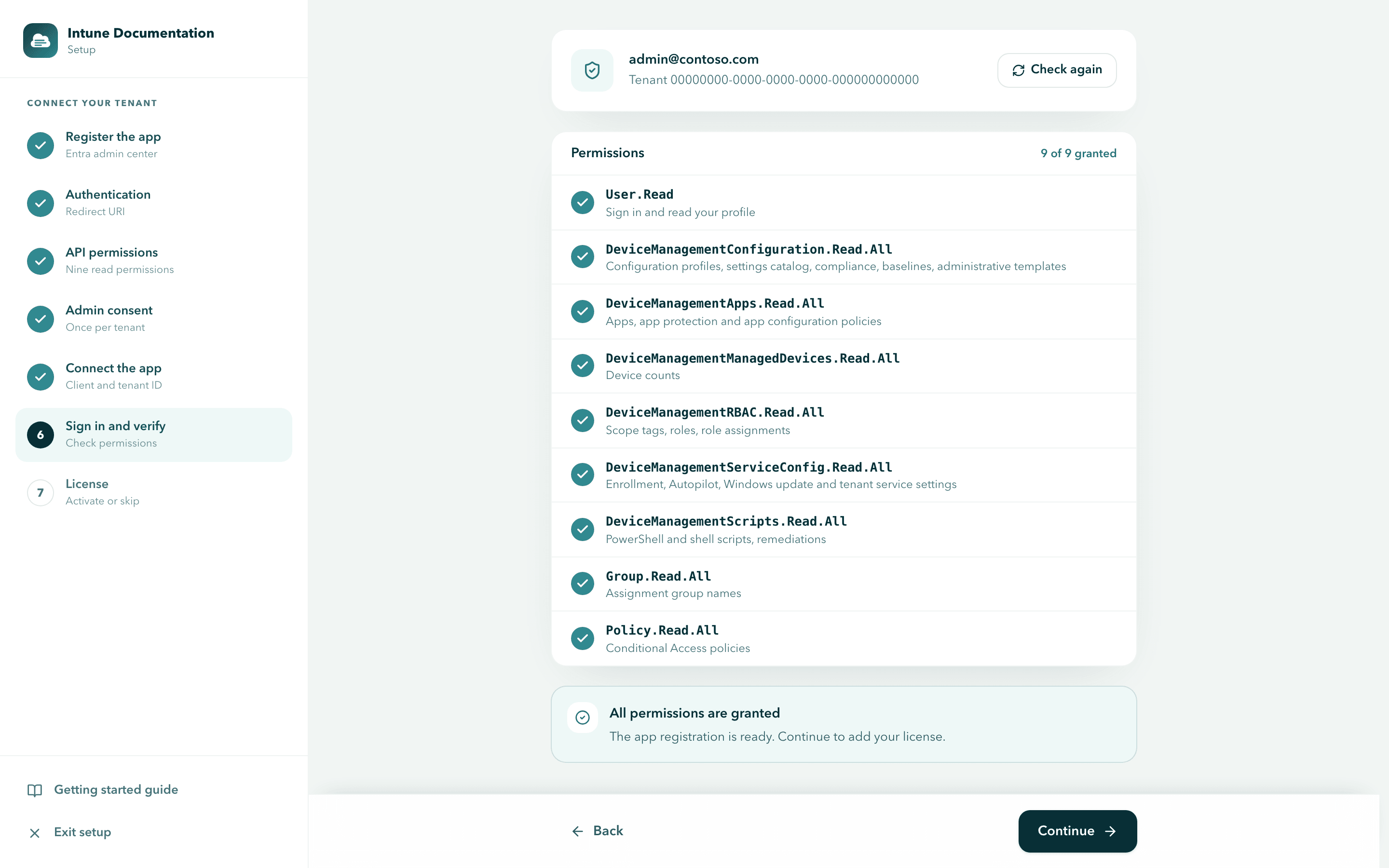
Select Continue.
If permissions are missing
When the check finds missing permissions, the wizard shows how many and marks each one. Admin consent was usually not granted yet, or a permission was added after consent. You have two ways to fix it:
- Grant consent in Entra. An administrator selects Grant admin consent on the API permissions page of the registration, as described in Grant admin consent. Then select Sign in again in the app.
- Consent from the app. A Global Administrator selects Sign in and consent for the organization. On the Microsoft page, they tick Consent on behalf of your organization and accept.
Select Check again at any time to repeat the check. You can continue with missing permissions, but the areas that need them stay empty in your documentation.
Which account to sign in with
What the app can document depends on the roles of the account you sign in with:
- Security Reader or Global Reader each cover everything the app reads.
- Intune roles such as Intune Administrator or Read Only Operator cannot read Conditional Access policies. Pair them with Security Reader.
If the account cannot read an area, the app still collects everything else and lists the gaps on the Overview. See Warnings and permission gaps.
Your sign in lasts while the app is open. After you restart the app, select Sign in again. Your Microsoft tokens stay in memory on your computer and the app calls Microsoft Graph directly.
Activate your license
Collecting and exporting need an active license for the tenant you signed in to. The license key arrives by email right after checkout and is also in the customer portal.
Paste your key
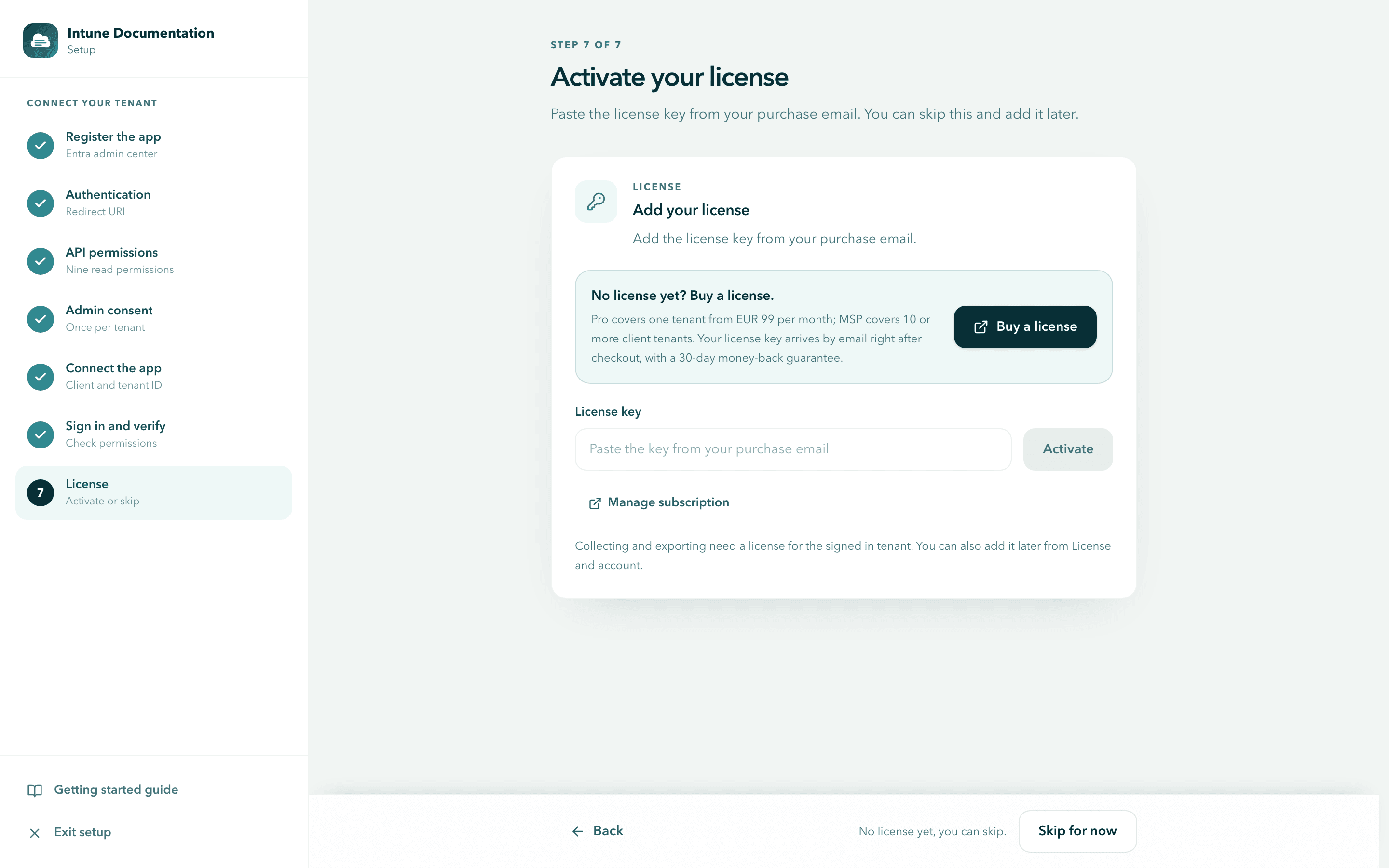
On the wizard step Activate your license, paste the key into License key.
Activate
Select Activate. The app activates the key for your signed in tenant and confirms with "License activated for this tenant."
Finish setup
Select Finish setup. The app opens the Overview, where you collect your configuration.
No key yet? Select Skip for now to finish the setup and add the key later under License and account. Buy a license opens the plans on our website. Pro covers one tenant, MSP covers 10 or more, and every plan comes with a 30-day money-back guarantee. See Plans and billing.
Already licensed through your organization
If a colleague already shares a license with your tenant, you do not need a key. The app finds the license when you sign in, and the last wizard step reads Your organization's license is active. Select Finish setup.
- A Pro license is shared with its tenant automatically.
- An MSP license is shared only with the customer tenants where the key holder turned on Let other admins in this tenant use this license.
Each colleague's computer still counts as one of the tenant's installations. Details are in Share a license with colleagues.
License and account
License and account in the sidebar shows who is signed in and the state of your license. Open it to add a key you skipped in the wizard, check your plan or share the license.
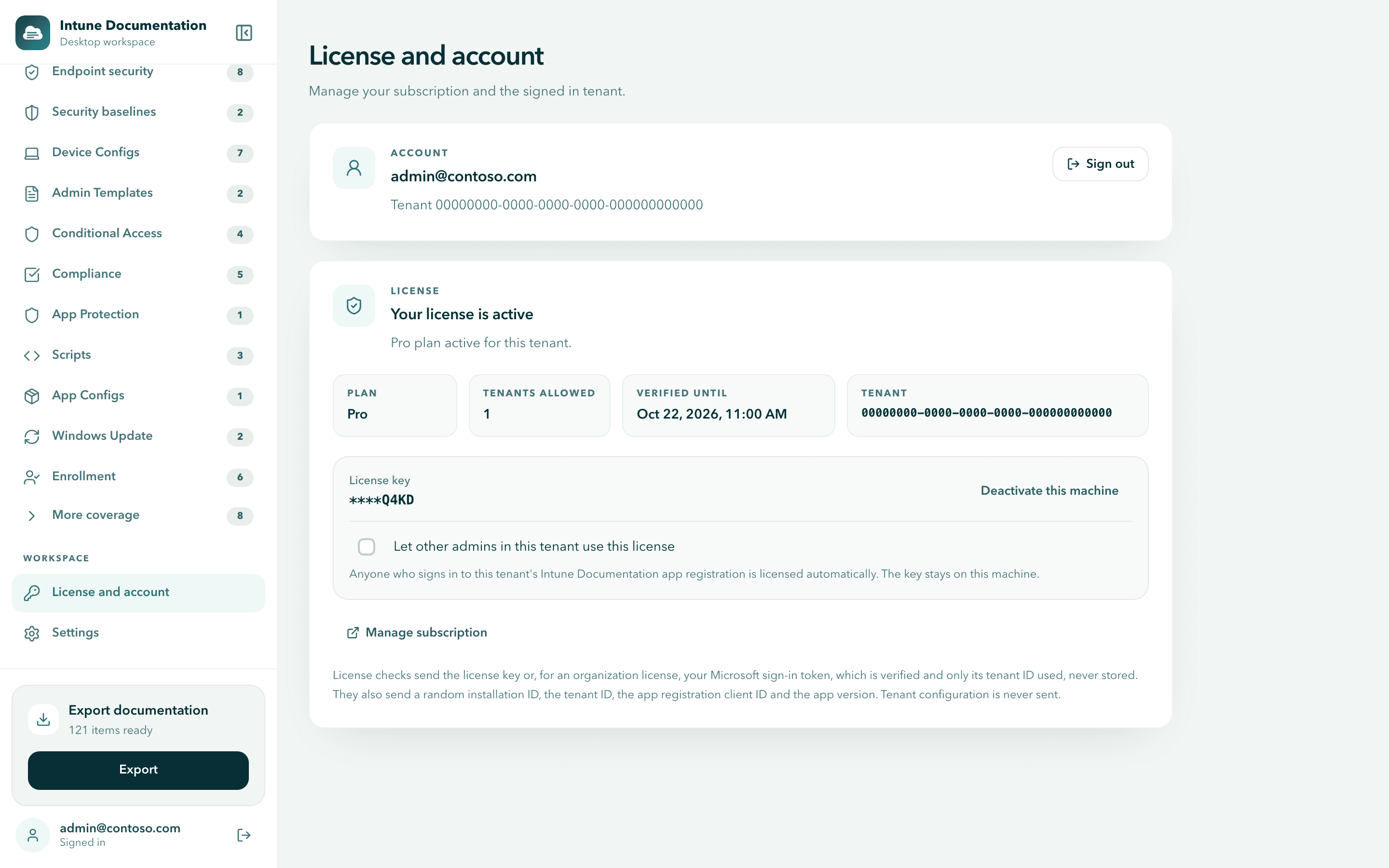
| Field | Meaning |
|---|---|
| Plan | Pro or MSP. |
| Tenants allowed | How many tenants your license covers. |
| Verified until | When the current license check expires. The app checks again automatically while it is online. |
| Tenant | The tenant this license is active for. |
| License key | The last four characters of your key. The full key is never shown again in the app. |
From here you can also:
- Share the license with colleagues with Let other admins in this tenant use this license. Only the computer that holds the key shows this option.
- Free an installation with Deactivate this machine, for example before you replace a computer. See Deactivate a machine.
- Open the customer portal with Manage subscription for invoices, your key and your plan.
- Sign out with Sign out on the account card.
Where your key is kept
Your license key and the signed license token are stored on your computer, encrypted with the operating system keychain (Keychain on macOS, Windows' built-in credential encryption on Windows). If secure storage is not available on a system, the app keeps the license in memory only, and you enter the key again after a restart.
Lost the key? You find it again in the customer portal. Sign in with the email address you used at checkout.
What a license check sends
The app checks your license when you activate it and regularly afterwards. A check sends your license key, or for an organization license your Microsoft sign in token, which is verified, used only for its tenant ID and never stored. It also sends a random installation ID, the tenant ID, the client ID of your app registration and the app version. Your tenant configuration is never sent.
After a successful check, the app keeps working for 14 days without reaching the licensing service. The full list is on Security and privacy.
If something does not work
- Sign in fails with AADSTS50011 or AADSTS65001: see Sign in problems.
- A license message appears: see License messages.
- "Licensing service offline": see The licensing service cannot be reached.
Next steps
- Collect your configuration
- Work with multiple tenants if you are on the MSP plan
- Plans and billing
Create the app registration
Register an app in Microsoft Entra ID, add the redirect platform, grant the Graph permissions and copy the IDs the desktop app needs.
Collect your configuration
Collect your Intune configuration from Microsoft Graph with the desktop app, read the overview and browse every configuration family.