
Management report
Export a one-page security summary for management in English or German, with month-over-month progress and an optional CIS Controls crosswalk.
A security summary management can read
Management does not want a long evidence report. They want to know three things: how well are we protected, where are the gaps, and is it getting better. The management report answers exactly that, on one page, in plain language.
It is a security summary in two parts, in English or German, for any supported framework, such as the NIS2 Directive or ISO/IEC 27001.
- Page 1 is for management. It leads with one number, safeguards in place: how many of the technical safeguards behind the framework are configured in an assigned Intune or Conditional Access policy. A bar per measure shows where protection is missing (with more than eight measures, the eight weakest), followed by the five recommended next steps. It uses plain language and no control ids.
- The following pages are for the IT reviewer. They explain how each number is calculated and what is not counted, and list every safeguard per measure with its state and the policies behind it, including whether each policy is assigned. Every number on page 1 links to its explanation.
A coverage figure, not an audit result
Safeguards in place is a coverage figure from your Intune and Conditional Access configuration. It is not a compliance score or an audit result. Measures outside Intune, such as organisational measures, need their own assessment.
The management summary in the app
You find everything for the management report at the top of a framework in Compliance Evidence, under Management summary. It shows the same numbers as page 1 of the report, so you can check them before you export.
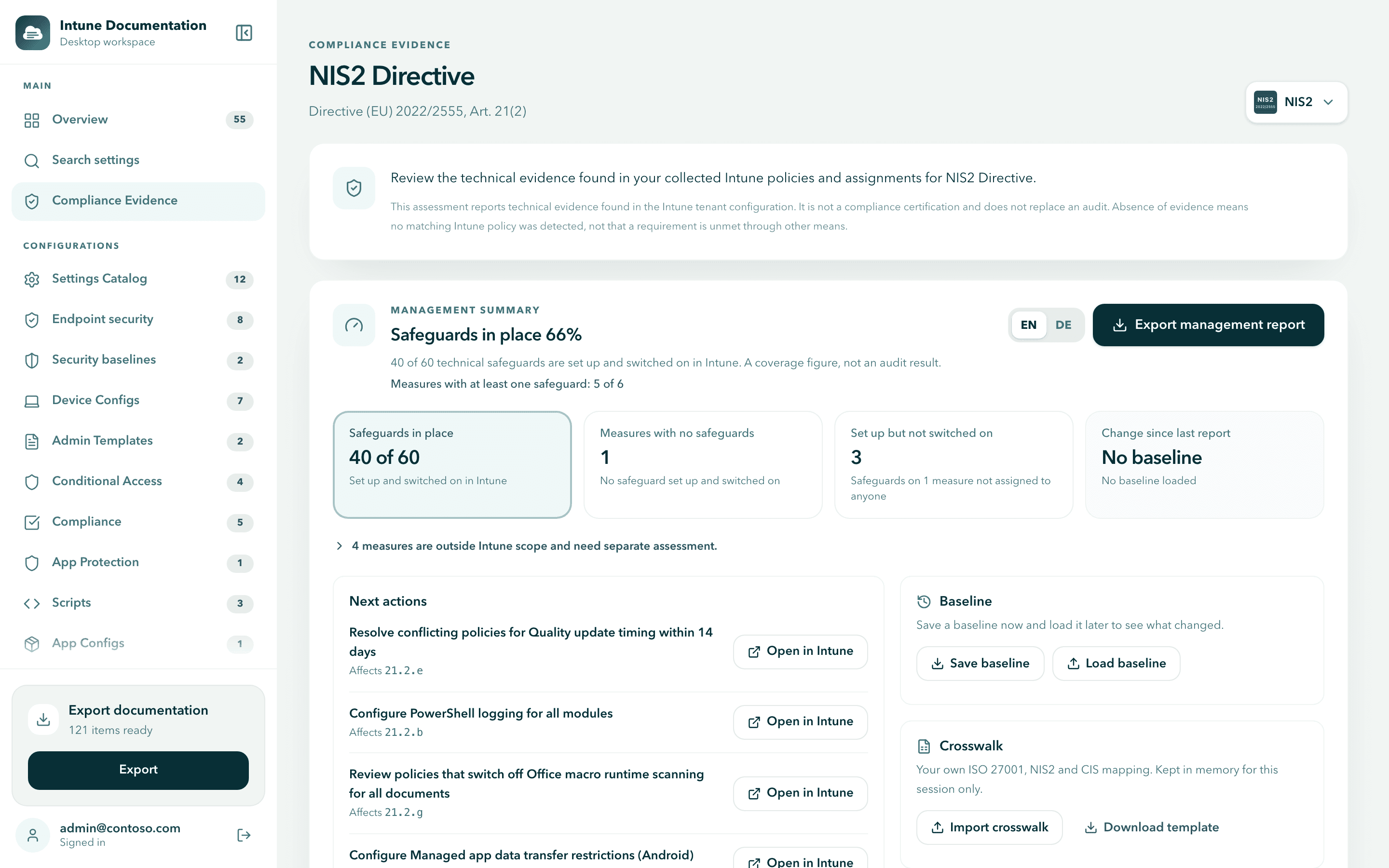
- Safeguards in place. The headline percentage and the count, for example 40 of 60, plus how many measures have at least one safeguard.
- Measures with no safeguards. Measures where not a single safeguard is set up and switched on.
- Set up but not switched on. Safeguards that are configured in a policy that is not assigned to anyone. These are often the quickest wins.
- Change since last report. The change in percentage points since the baseline you loaded. Shows No baseline until you load one.
Select a tile to filter the Mapped controls list below to those controls. Select it again to show all controls.
Next actions lists up to five recommended steps, such as configuring a missing setting, assigning an existing policy or resolving conflicting policies. Each one names the measures it affects and has an Open in Intune or Open in Entra button that opens the right place in the admin center.
If some measures are outside Intune scope, a line below the tiles says how many. Expand it to see which ones. Measures marked as not checked yet relate to Intune or Entra settings that the report does not evaluate yet; review those in the admin center.
Export the management report
Choose a framework
Open Compliance Evidence and choose a framework, for example NIS2 Directive or ISO/IEC 27001. Check the platforms in scope. See Set the scope.
Choose the language
Select EN for English or DE for German.
Export
Select Export management report and choose where to save the PDF. When it is saved, select Open file or Show in folder (Show in Finder on macOS).
Show progress month by month
A single number is a snapshot. A number that moves is a story. With a baseline, the report shows how safeguards in place changed since your last report, overall in percentage points and per measure.
Save a baseline with this report
Under Baseline, select Save baseline and keep the file with your report. The file is named after the framework and the date, for example intunedoc-baseline-nis2-2022-2555-2026-10-01.json.
Next month, collect again
Collect your tenant again so the assessment reflects the current configuration. See Collect your configuration.
Load last month's baseline
Select Load baseline and choose last month's file. The card shows Compared with baseline from and the date, and Change since last report shows the change, for example +5 pts. Select that tile to see which measures changed.
Export the new report
Select Export management report. The report now includes the change. Save a new baseline for next month.
Baseline rules
- What a baseline contains. Control identifiers, statuses, safeguard counts and the tenant ID. Never policy names or settings.
- Same tenant, framework and scope. A baseline only compares with the same tenant, framework and scope. A file from another tenant, for another framework or with a different platform selection is rejected with a message that says why.
- Do not edit the file. A baseline that was changed after it was saved is rejected.
- Versions. Baselines saved with version 0.2.2 need 0.2.2 or newer, so update every installation that loads them.
- Rule updates. If the app's mapping rules changed since the baseline was saved, the card says so, because some movement may come from mapping updates rather than your configuration.
- Session only. A loaded baseline is kept in memory while you are signed in. Select Clear to remove it. After a restart or sign out, load it again.
If a baseline is rejected, the message tells you what to do. See Baseline file is rejected.
Add CIS Controls through your own crosswalk
Many organisations report against CIS Controls as well. The app ships no CIS Controls content, but you can add your own mapping, so CIS Controls safeguards appear next to your ISO/IEC 27001 and NIS2 controls.
The crosswalk works with ISO/IEC 27001 and the NIS2 Directive. On other frameworks the Crosswalk card only says that crosswalk ids show on ISO 27001 and NIS2.
Download the template
Under Crosswalk, select Download template and save the CSV file.
Fill in your mapping
Fill in your organisation's mapping from your licensed CIS copy. The template has these columns:
| Column | What to enter |
|---|---|
iso27001_control | One ISO/IEC 27001:2022 Annex A control, such as 8.1 or A8.1. |
nis2_measure | A NIS2 Article 21(2) measure, written as 21.2.j, j or a national code such as 10A. Separate several with | or +. |
cis_safeguard | The CIS Controls safeguard ids from your licensed copy. Separate several with + or |. |
notes | Optional free text. |
Fill in iso27001_control or nis2_measure (or both) plus cis_safeguard on every row. Comma and semicolon separated files both work. Lines starting with # and blank lines are ignored.
Import it
Select Import crosswalk and choose your file. The app confirms how many rows it imported and lists any lines it could not read, with their line numbers.
After the import, mapped controls show your CIS ids as CIS (your crosswalk), and the reviewer pages of the management report list them next to each measure. Select Remove to take the crosswalk out again.
Your crosswalk stays in memory for the current session and is never saved by the app, so import it again after restarting. The file can be up to 1 MB. If the import fails, see Crosswalk import fails.
Next steps
- Compliance evidence: the full evidence report for your auditor, with every control and policy.
- Search settings: find the policies behind a next action.
- Collect your configuration: refresh your data before each monthly report.
Compliance evidence
Map your Intune configuration to frameworks such as NIS2, ISO/IEC 27001, SOC 2, NIST and BSI IT-Grundschutz, and export an evidence report for your auditor.
Work with multiple tenants
Document several customer tenants with one MSP license: one app registration per tenant, switching tenants, tenant counts, sharing and per-tenant baselines.