
Compare with a reference
Export a settings only reference file from a tenant, load it later or elsewhere, and compare settings value by value, or compare two tenants directly on the MSP plan.
Compare checks the settings of this tenant against a standard: a reference file saved earlier or from another tenant, or, on the MSP plan, another tenant on this computer. It compares setting by setting, whichever policies carry them, so you can hold a golden baseline against any tenant and see exactly where it differs.
Select Compare in the sidebar. A comparison reads the settings of this tenant's current collection, so collect first. Nothing is changed in the tenant. Compare needs an active license.
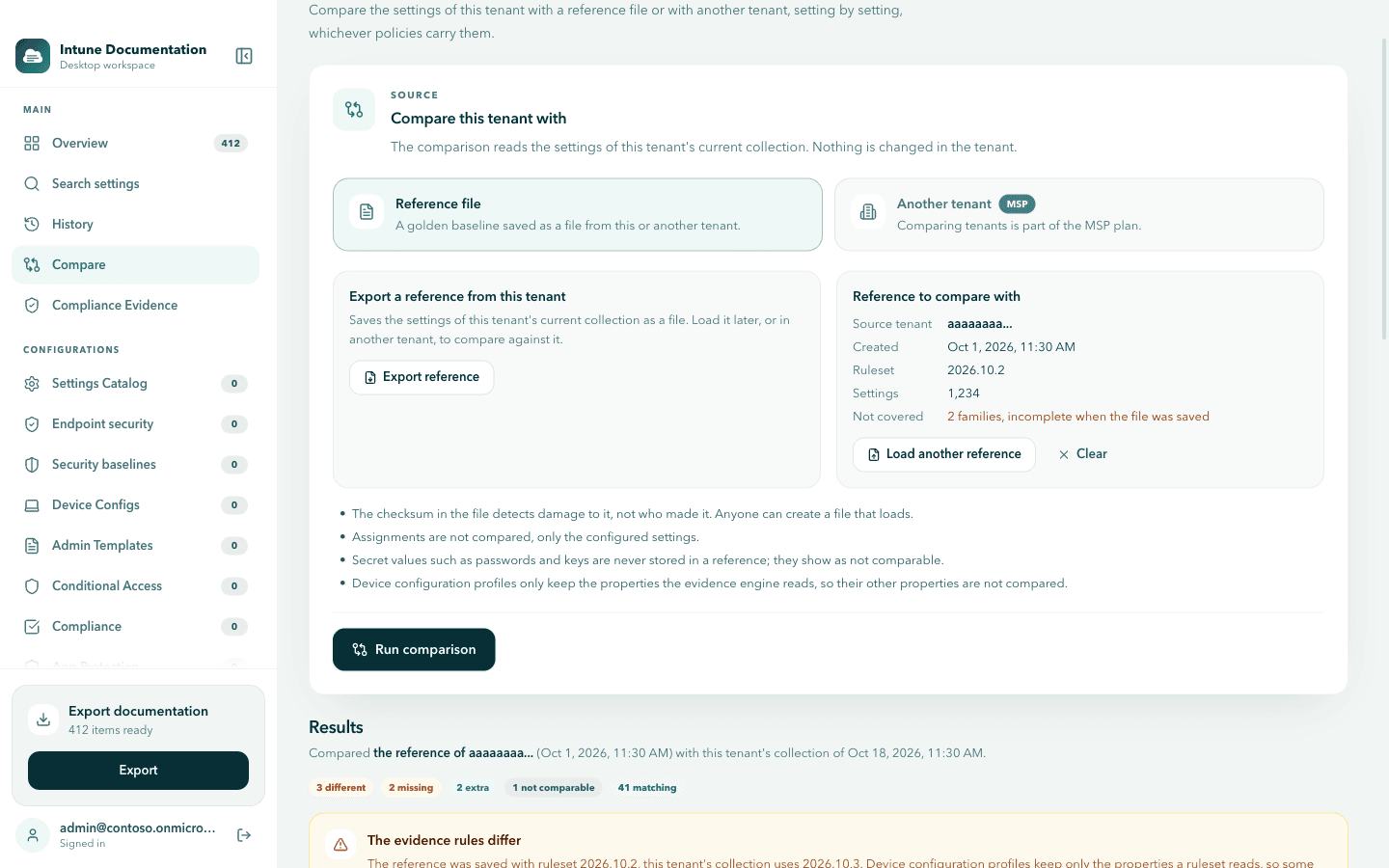
Export a reference from this tenant
Under Export a reference from this tenant, select Export reference and choose where to save the file. It saves the settings of this tenant's current collection as a file. Load it later, or in another tenant, to compare against it.
What a reference file contains
- the configured settings only: for each setting, its platform, family, setting id and value, with the policy name kept as a hint for reading the result
- the source tenant as a shortened label, when it was created, and the ruleset version
- which families were incomplete when the file was saved, so a gap never reads as a missing setting later
- a checksum over the file contents
Assignments are not in the file, and secret values such as passwords and keys are never stored in a reference. Device configuration profiles only keep the properties the evidence engine reads.
The checksum detects damage, not authorship
The checksum in the file detects damage to it, not who made it. Anyone can create a file that loads. Treat a reference file like any other file someone hands you: only rely on it when you trust where it came from.
Load a reference and run the comparison
Load the reference
Under Reference to compare with, select Load reference and choose the file. The card then shows its Source tenant, Created date, Ruleset, Settings count and what is Not covered. Select Clear to unload it, or Load another reference to replace it.
A file that is damaged, edited, too large or not a reference file is rejected, and The reference could not be loaded says why.
Run the comparison
Select Run comparison. The Results section names both sides and their dates, with a count per status.
Read the results
Use the Show settings filter to move between All differences and each status. Every row shows the setting, its values in This tenant and in the Reference, and the policies behind them. Select Show full value for long values.
If the collection changes after a comparison, the screen says The collection changed after this comparison. Run it again to refresh the result. If the reference was saved with different evidence rules, a warning under The evidence rules differ names both rulesets, because device configuration profiles keep only the properties a ruleset reads.
Compare with another tenant (MSP plan)
On the MSP plan, Compare this tenant with offers a second source: Another tenant, the latest snapshot of another tenant with history on this computer. Choose a tenant and select Run comparison. The result reads the same way, with the other side labelled Other tenant.
Without the MSP plan, the option is marked MSP and says that comparing tenants is part of the MSP plan. The plan check runs in the app itself, not only on this screen.
For the other tenant to appear, sign in to it once on this computer, turn on history and collect there. See History and scheduled collection. When none qualifies, the screen says No other tenant has history on this computer and explains the same steps.
The statuses
Each compared setting gets one status, counted per platform in the results:
| Status | Meaning |
|---|---|
| Different | Set in this tenant and in the reference or other tenant, with different values. |
| Missing | Set in the reference or other tenant, not in this tenant. |
| Extra | Set in this tenant, not in the reference or other tenant. |
| Not comparable | A value is secret, not kept or not readable, so it cannot be compared. |
| Matching | The same values in both, whichever policies set them. |
All differences collects everything except Matching. No differences means every compared setting matches.
What the comparison does not cover:
- Assignments are not compared, only the configured settings. Two tenants can match here and still assign the policies to different people.
- Families that were incomplete on either side are left out and reported as not covered, so their settings never show as missing or extra.
- Device configuration profiles only keep the properties the evidence engine reads, so their other properties are not compared.
- Very large rule sets are compared approximately. When hundreds of rules of one kind, such as firewall rules, changed on both sides, each rule is only paired with a few similar rules, so a setting inside those rules can show as different although it did not change.
Next steps
- History and scheduled collection: what changed in one tenant between two collections.
- Portfolio: coverage and snapshot age for every tenant on this computer (MSP plan).
- Search settings: find every policy that sets a value the comparison flags as different.
History and scheduled collection
Keep encrypted snapshots of your collections on your computer, see what changed between two of them, and collect automatically every 6, 12 or 24 hours while the app is open.
Select and export
Browse your configuration by family, pick the policies you need and export them as a PDF report or an editable Word document.