
History and scheduled collection
Keep encrypted snapshots of your collections on your computer, see what changed between two of them, and collect automatically every 6, 12 or 24 hours while the app is open.
A collection answers how the tenant looks now. History answers what changed: which policies were added, removed, renamed or changed, which setting values moved, which assignments changed, and which control results that caused.
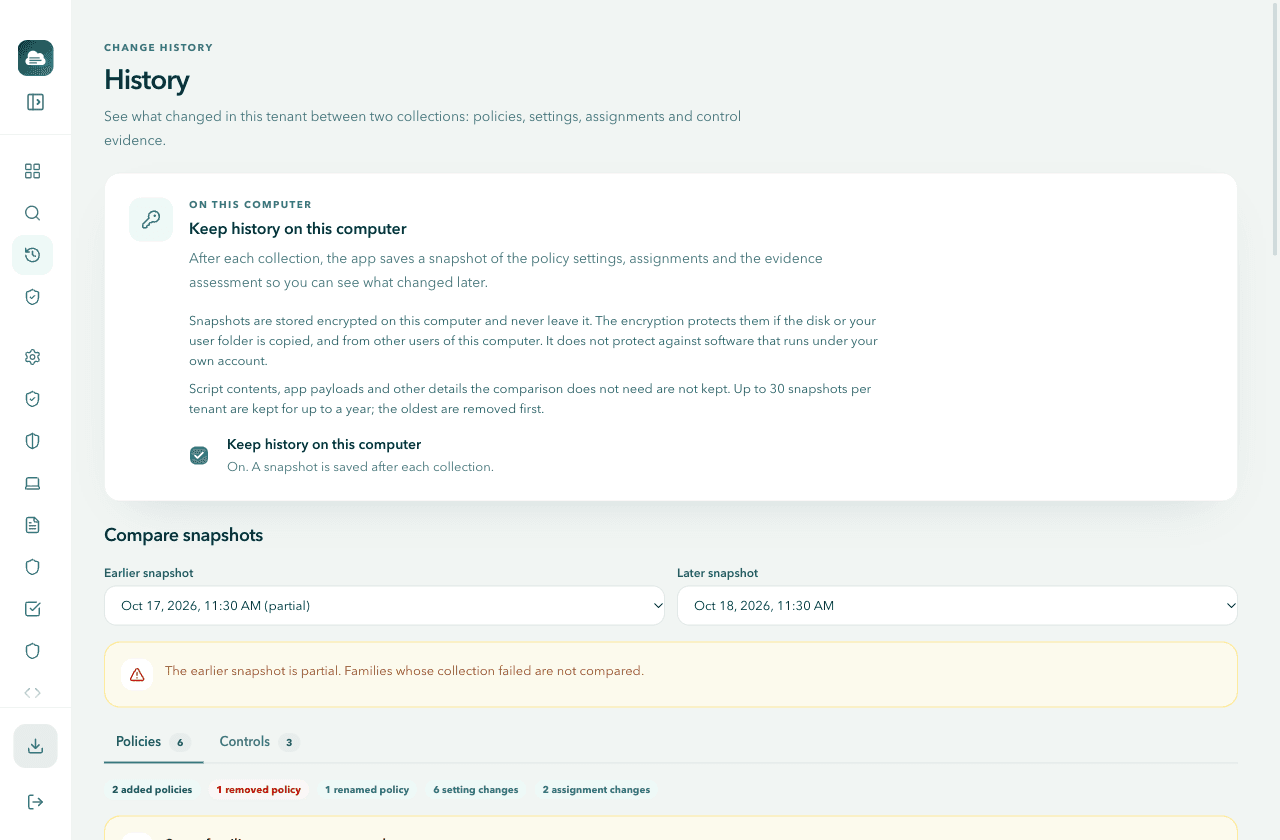
History is off by default. You turn it on per computer, and from then on the app saves a snapshot after each collection. Snapshots are kept encrypted on your computer and never leave it. Select History in the sidebar to open it. History is kept per tenant, so sign in to the tenant whose snapshots you want to see. It needs an active license.
Turn history on
Open History
Select History in the sidebar.
Turn on Keep history on this computer
Select the Keep history on this computer checkbox in the On this computer card. It then reads On. A snapshot is saved after each collection.
Collect
Collect your tenant to save the first snapshot. See Collect your configuration.
Turn the checkbox off to stop saving new snapshots. Saved snapshots stay until you delete them, and the scheduled collection below pauses while history is off.
If the screen says History is not available on this computer, secure storage is not available there, so history stays off. Snapshots are never stored without encryption, and the screen says why.
What a snapshot stores, and what it does not
A snapshot is a reduced copy of a collection, limited to what comparisons and the assessment need:
- per policy: its identity, name, type, platform, last modified time, its settings in the form the evidence checks read, and its assignments with targets, filters and intent
- whether each part of the collection succeeded, so gaps are known later
- the Entra tenant policy fields the evidence checks read, and Intune's device status counts per policy
- the group names behind assignments
- the evidence assessment made at collection time, with the ruleset version it used, so history shows the result as it was then
Not stored:
- script contents. A changed script shows as content changed, with the note that script bodies are not kept in history
- app payloads and other details the comparison does not need
- for device configuration profiles, everything except the properties the evidence checks read. Changes to their other properties are not shown
Encryption and its limits
Snapshots are stored encrypted on this computer (AES-256-GCM) and never leave it. The encryption key is protected by your operating system's secure storage, the same mechanism that protects your license file. The snapshot index is encrypted the same way.
The encryption protects the snapshots if the disk or your user folder is copied, and from other users of this computer. It does not protect against software that runs under your own account, because that software can use the same secure storage. See Optional local history in Security and privacy.
How long snapshots are kept
Old snapshots are removed automatically, oldest first, when any of these limits is reached:
- 30 snapshots per tenant
- 365 days of age
- 500 MB of history in total
The snapshot list shows each snapshot with its collection time, item count, ruleset version and size. The newest is marked Latest, and one whose collection was incomplete is marked Partial.
To remove history yourself, use the delete button on a snapshot (Delete this snapshot?), or Delete all for every snapshot of the signed in tenant (Delete all snapshots of this tenant?). Deleted snapshots cannot be brought back. Clear local data removes all snapshot history as well. See Settings and updates.
Compare two snapshots
Under Compare snapshots, choose an Earlier snapshot and a Later snapshot. The latest and the one before it are preselected. Choosing the same snapshot twice asks you to choose two different snapshots. With only one snapshot so far, collect again to get something to compare.
The Policies tab
The Policies tab lists what changed in the configuration:
- added, removed and changed policies, with a renamed policy shown as the same policy under its new name. A policy that was deleted and recreated counts as removed plus added.
- setting changes, with the Before and After values. Select Show full value for long values.
- assignment changes, added and removed.
A summary line counts each kind, for example 2 added policies, 1 removed policy, 1 renamed policy, 6 setting changes and 2 assignment changes. When nothing changed, the tab says No configuration changes.
The Controls tab
The Controls tab shows control status changes between the two stored assessments, per framework: the status before and after, and the causes, meaning the evidence that was added or removed behind the change. A capability that could not be fully assessed in either collection, for example because a policy or its assignments could not be read, is marked as not compared instead, so a collection gap never reads as evidence removed. When nothing changed, it says No control status changes.
If the evidence rules changed between the two snapshots, a warning says so: some status changes may then come from mapping updates rather than from your configuration.
Partial snapshots are not compared where they failed
A snapshot from an incomplete collection is marked partial. Families whose collection failed are excluded from the comparison and shown as not compared, under Some families were not compared. A gap in the data never reads as a removed policy or a missing setting. The same holds for the Entra tenant settings: a setting Microsoft Graph did not return in one of the snapshots is listed under Some Entra settings were not compared and is not counted as a change.
The management summary uses the same comparison. See Changes since the previous collection.
Scheduled collection
With history on, the app can collect this tenant automatically, so history keeps up without a manual collection. The setting is on the History screen, in the Scheduled collection card under While the app is open.
Choose Collect automatically: Off, Every 6 hours, Every 12 hours or Every 24 hours. Off is the default. Scheduled collections save snapshots, so they need history: with history off, the card says to turn on Keep history first, and a running schedule pauses.
The conditions, as shown on the card:
- Runs only while the app is open and you are signed in. The app does not store your sign in to run while closed.
- Every run checks the license first.
- If the computer was asleep when a run was due, it runs once after waking.
- Each run saves a snapshot like a manual collection.
The card shows the state: the next run time, Running now, or Paused with the reason, for example when the sign in has expired. It also shows the last run and its result, and when a run was skipped and why. A scheduled run never interrupts work already running in the app. It skips that turn and records the reason instead.
Next steps
- Compare with a reference: compare this tenant with a reference file or another tenant, setting by setting.
- Portfolio: every tenant with history on this computer, side by side (MSP plan).
- Security and privacy: where snapshot data stays and what the encryption does.
Search settings
Find any setting across every collected policy by name, value or technical id, and see where it is configured, with its value, platform and assignment.
Compare with a reference
Export a settings only reference file from a tenant, load it later or elsewhere, and compare settings value by value, or compare two tenants directly on the MSP plan.