
Evidence register and Purview evidence pack
Save the compliance assessment as an Excel or CSV evidence register, and as a ZIP evidence pack you attach to improvement actions in Microsoft Purview Compliance Manager.
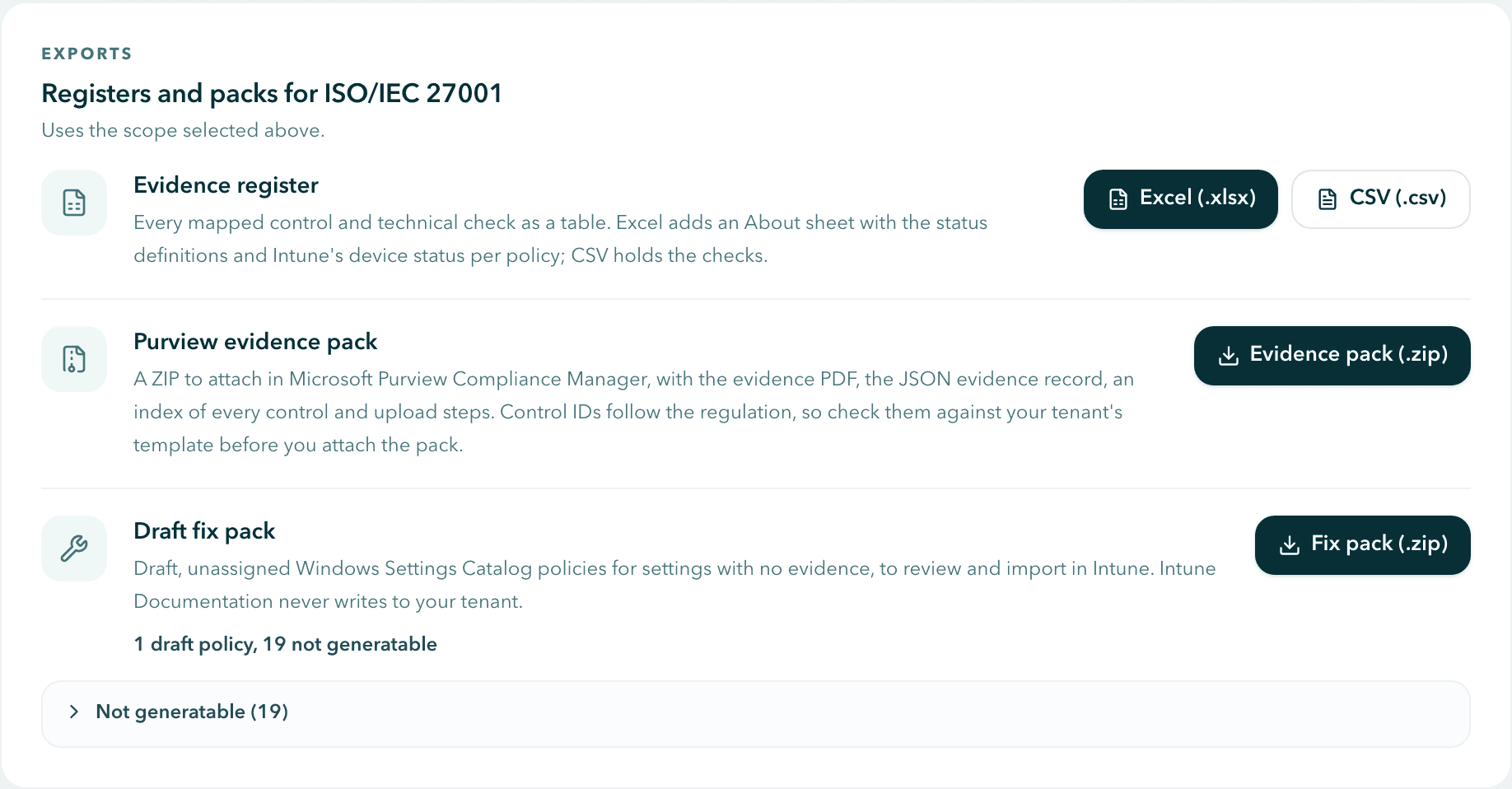
The evidence report is for people. Two other exports serve the tools around it: the Evidence register turns the assessment into tables you can sort, filter and import, and the Purview evidence pack packages the evidence for Microsoft Purview Compliance Manager, where device controls expect a file uploaded by hand.
You find both on a framework screen in Compliance Evidence, under Exports in the card Registers and packs for your framework. Both use the scope selected above them. See Set the scope.
The evidence register
The register is the same assessment as rows and columns, for review, tracking or import into your own tooling. Select Excel (.xlsx) or CSV (.csv), then choose where to save the file. When it is saved, select Open file or Show in folder (Show in Finder on macOS).
Excel workbook
| Sheet | What it holds |
|---|---|
| About | What the file is, when the data was collected, the scope, the ruleset version, the disclaimer and the definition of every status used in the workbook. |
| Controls | One row per control: framework, control id and title, control status, how many safeguards it has, its evidence split into assigned evidence, counter-evidence and evidence on unassigned policies, and what the evidence does not establish. |
| Checks | One row per technical check for each control it supports: safeguard, check result, policy, setting id, expected value, actual value and assignment. A control without any check gets one row with the reason, so no control is silently missing. |
| Policy status | Intune's device status counts per policy: succeeded, error, conflict, not applicable and pending. A policy Intune reports nothing for is marked as no status reported, never as zero. These counts describe rollout only. They never change a control status. |
CSV
The CSV file holds the Checks table with the same columns as the Checks sheet. Use it when you want one flat file for a script, a ticket system or a GRC import. The Controls table is part of the Excel workbook.
Values that begin like a spreadsheet formula are neutralised, so a policy name or setting value from the tenant cannot run as a formula when the file is opened.
The Purview evidence pack
Compliance Manager does not read Intune configuration. For device controls, someone opens the improvement action and uploads evidence as a document. The evidence pack builds that document package for you. The background is in Intune Documentation and Purview Compliance Manager.
Select Evidence pack (.zip) and choose where to save the file. The ZIP contains four files:
| File | What it is |
|---|---|
| The framework evidence PDF | The evidence report for every assessed control, with checks, evidence and limitations. |
| The JSON evidence record | The machine readable assessment, with the snapshot and ruleset fingerprints of the result. |
| index.csv | One row per assessed control: framework, the matching Purview template name, control id and title, status, the same three evidence counts as the register, where to find the control in the PDF, and a note when the control has no evidence or was not assessed. |
| README.txt | What the pack is, when the data was collected, the scope and ruleset, the upload steps below, and the disclaimer. |
There is no separate PDF per control. The index points each control at its section of the one framework PDF.
Evidence, not a verdict
The pack is technical evidence from your Intune configuration. It does not decide whether a control is met. Your team reviews the evidence in Compliance Manager and records the outcome.
Before you upload: check the control IDs
Control IDs in the index are as published by the regulation. A Purview template can number, split or group controls differently, and template versions differ between tenants. Before you attach anything, check each control ID against the controls of the template in your tenant.
Attach the pack in Compliance Manager
Open the assessment
In the Microsoft Purview portal, open Compliance Manager and open the assessment that uses the matching template. The index and the README name the template.
Open the improvement action
Open the improvement action related to the control. index.csv lists the control IDs, so you can match each action to its row.
Add the evidence
Open the Evidence tab, select Add evidence, then Document. Choose the ZIP file, or the PDF from inside it, and select Done.
Purview accepts .pdf and .zip files as document evidence. Its list of accepted file types does not include .csv or .json, so attach the ZIP or the PDF and keep the index and the record with your assessment files.
Repeat per improvement action
Repeat for each improvement action you are evidencing, then record the status your team decides on. The index says where each control is covered in the PDF.
When the configuration changes, collect again, save a fresh pack and replace or add the affected evidence. With local history on, you can show what changed between the two packs.
Next steps
- Draft fix pack: draft policies for settings with no evidence at all.
- Compliance evidence: read the control results before you export.
- Intune Documentation and Purview Compliance Manager: what each product does and how they fit together.
Compliance evidence
Map your Intune configuration to frameworks such as NIS2, ISO/IEC 27001, SOC 2 and NIST, and export an evidence report for your auditor.
Draft fix pack
Generate draft, unassigned Windows Settings Catalog policies for settings with no evidence, review them, and import the ones you want in the Intune admin center.