
Portfolio
On the MSP plan, see every tenant with history on this computer side by side: snapshot count and age, ruleset, and evidence coverage per framework.
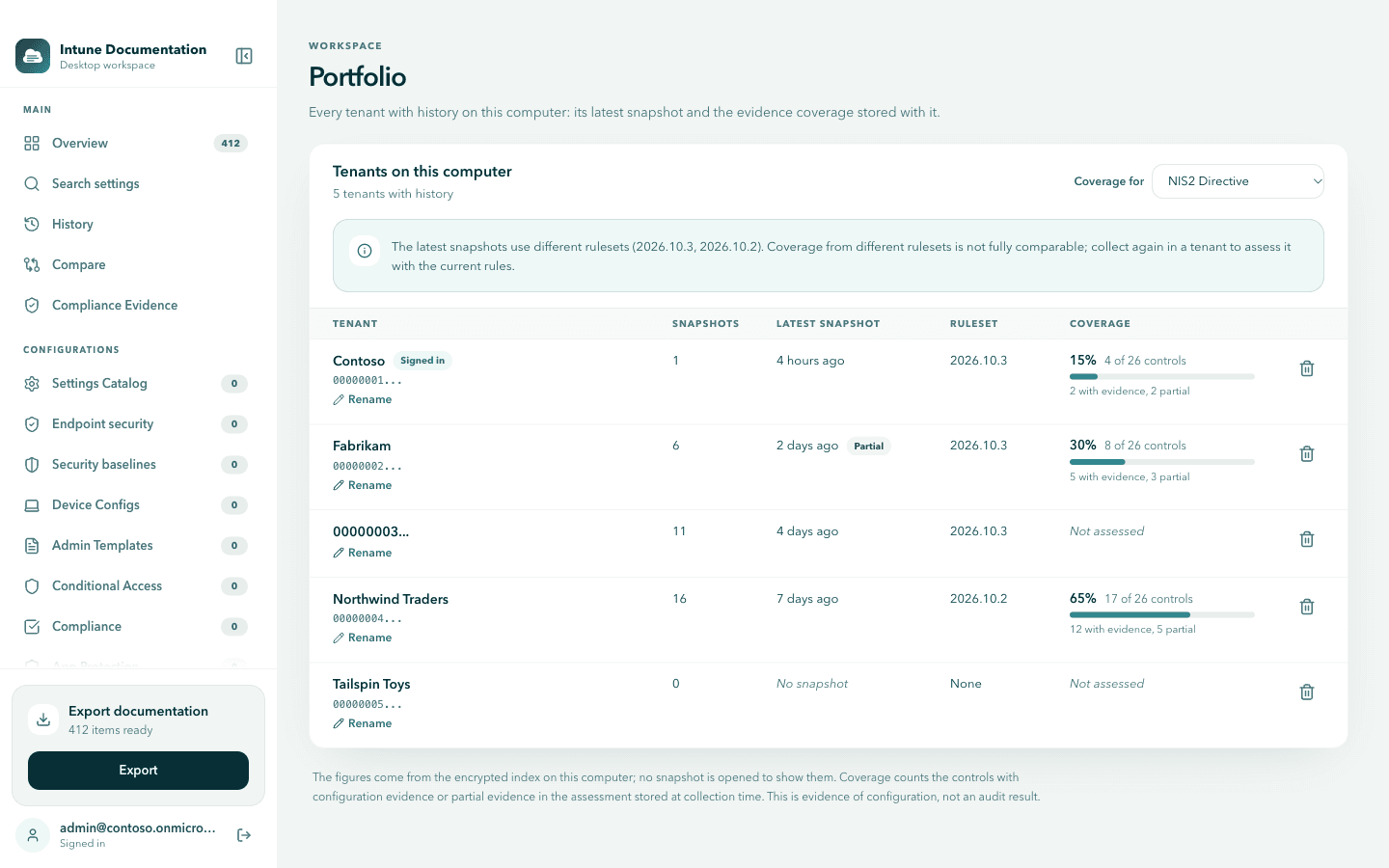
Portfolio is the multi tenant view of local history. For every tenant with history on this computer, it shows how many snapshots exist, how old the latest one is, which ruleset assessed it, and the evidence coverage stored with it, so you can spot the tenant that needs attention or a fresh collection.
Portfolio is part of the MSP plan. Select Portfolio in the sidebar, under Workspace. It is marked MSP on other plans, and the screen then says Portfolio is part of the MSP plan. The plan check runs in the app itself, not only on this screen. Sign in to any tenant with an MSP license to open it. Portfolio lists every tenant with history on this computer, not only the signed in one.
What Portfolio shows
Under Tenants on this computer, each tenant has one row:
| Column | What it means |
|---|---|
| Tenant | Your label for the tenant, or its short id. The signed in tenant is marked Signed in. |
| Snapshots | How many snapshots of this tenant are kept on this computer. |
| Latest snapshot | How long ago the newest snapshot was collected, marked Partial when that collection was incomplete, or No snapshot. |
| Ruleset | The ruleset version that assessed the latest snapshot. |
| Coverage | For the framework chosen under Coverage for: how many of its applicable controls have configuration evidence or partial evidence, as a count and a bar, for example 17 of 26 controls with 12 with evidence, 5 partial. A tenant that was not assessed for that framework shows Not assessed. |
Use Coverage for to switch the framework. The coverage counts come from the assessment stored at collection time.
When the latest snapshots use different rulesets, a note lists them: coverage from different rulesets is not fully comparable. Collect again in a tenant to assess it with the current rules.
The figures come from the encrypted index on this computer. No snapshot is opened to show them, and the tenant data itself is not read. Coverage is evidence of configuration, not an audit result.
Get a tenant to appear
A tenant appears once it has history on this computer. Sign in to each tenant you manage, turn on history and collect. See History and scheduled collection and Work with multiple tenants. Until then, the screen says No tenant history on this computer yet.
Name your tenants
Tenants are shown by a short id until you name them. Select Rename on a tenant, enter its name and select Save. Leave the field empty to show the short id again.
The name is stored in the encrypted index on this computer only. It names the tenant here and in Compare when you compare another tenant with this one. Reference files exported from the tenant always show the shortened tenant id as their source, not this name. It changes nothing in the tenant itself.
Delete a tenant's history
Select the delete button on a tenant row. The app asks Delete all history of that tenant: every snapshot of this tenant on this computer is removed, and it cannot be undone. Confirm with Delete history. Deleting the signed in tenant's history is allowed and the dialog says when that is the case.
Deleting history here removes local snapshots only. It does not release the tenant from your license. For that, see Work with multiple tenants.
Next steps
- Compare with a reference: compare two tenants setting by setting (MSP plan).
- Work with multiple tenants: app registrations, switching and tenant counts.
- History and scheduled collection: what snapshots store and how long they are kept.
Management report
Export a one-page security summary for management in English or German, with month-over-month progress and an optional CIS Controls crosswalk.
Work with multiple tenants
Document several customer tenants with one MSP license: one app registration per tenant, switching tenants, tenant counts, sharing and per-tenant baselines.